> ## Documentation Index
> Fetch the complete documentation index at: https://docs.eolasflow.ai/llms.txt
> Use this file to discover all available pages before exploring further.
# AI Assistants
> Create and configure intelligent voice assistants with multi-provider AI
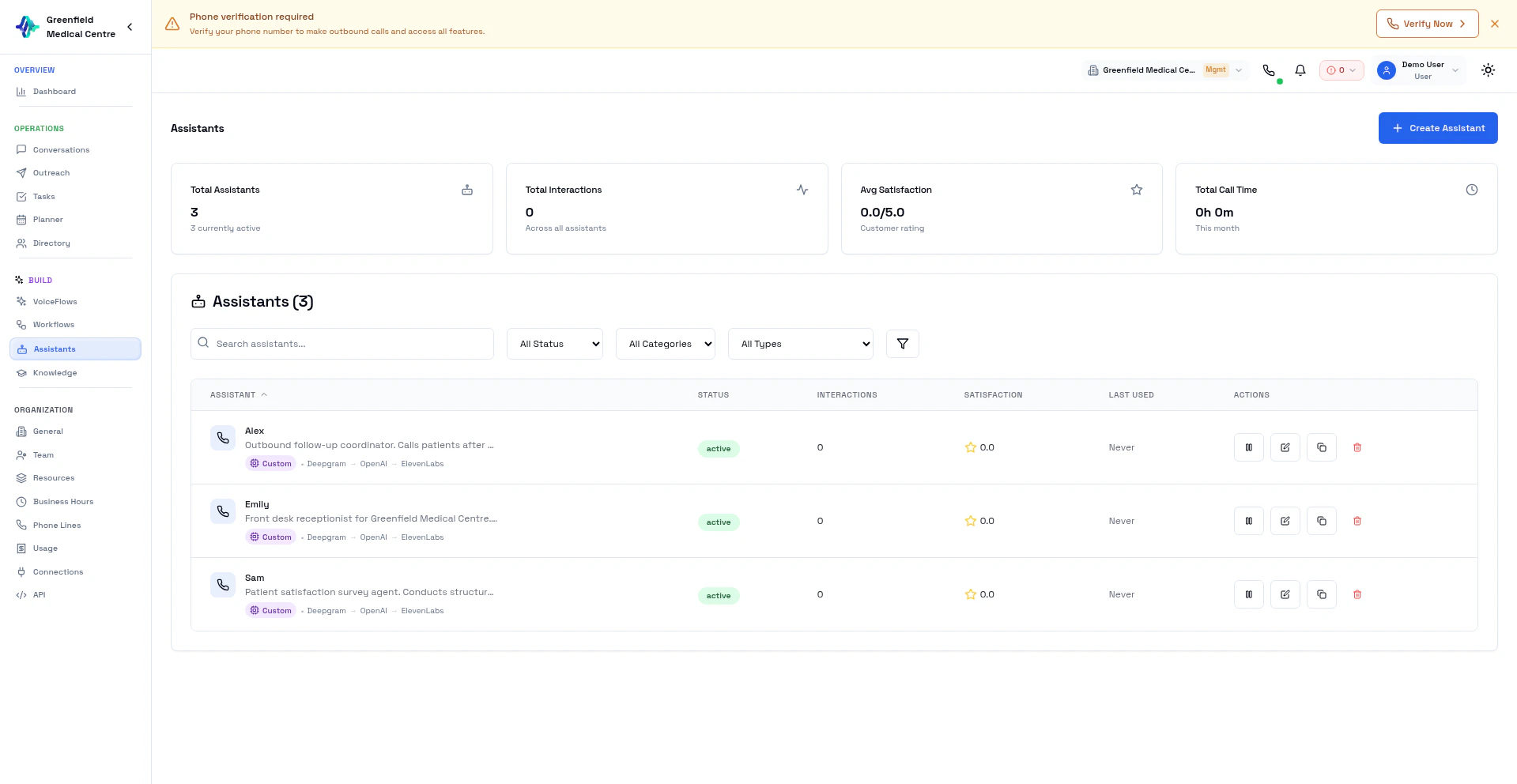 AI Assistants are the intelligent voice personas that handle your phone calls. Each assistant has its own AI pipeline, voice, personality, and objectives. EolasFlow supports multiple AI providers so you can optimize for latency, quality, or cost.
## Assistant Types
EolasFlow supports three types of assistants:
Handles phone calls with natural speech synthesis and real-time understanding
Text-based conversations for web chat or messaging
Background automation tasks without direct interaction
## Creating a Voice Assistant
Go to **Assistants** in the Team section and click **New Agent**.
Choose **Voice** for phone conversations.
* **Name:** Internal name (e.g., "Sales Assistant")
* **Description:** What this assistant does
* **Category:** Sales, Support, Lead Qualifier, Appointment Scheduler, etc.
Select the AI pipeline that powers your assistant's intelligence.
Set the voice, write a system prompt, greeting, and define objectives.
Optionally enable built-in call tools (transfer, appointment booking, knowledge retrieval, hangup).
## AI Pipeline Options
The pipeline determines how your assistant listens, thinks, and speaks. Choose based on your latency and quality requirements:
### OpenAI Realtime (\~200-400ms)
End-to-end voice pipeline from OpenAI. Audio goes in, audio comes out — no separate STT/TTS step.
* **Best for:** Lowest latency, natural conversations
* **Voice:** Built-in OpenAI voices
* **LLM:** GPT-4o (built-in)
### Gemini Live (\~300-500ms)
Google's native audio model with built-in voice synthesis.
* **Best for:** Multilingual support, Google ecosystem
* **Voice:** Built-in Gemini voices (Puck, Charon, Kore, etc.)
* **LLM:** Gemini (built-in)
### Custom Pipeline (\~750-1300ms)
Mix and match STT, LLM, and TTS providers independently. Maximum flexibility.
* **STT:** Deepgram Nova (always)
* **LLM:** Choose from OpenAI, Groq, xAI Grok, or Google Gemini
* **TTS:** Choose from ElevenLabs, Cartesia, Google, Sarvam, NexVani, or Groq Orpheus
#### LLM Providers
| Provider | Models | Latency |
| ----------------- | ---------------------------------------------- | ------------ |
| **OpenAI** | GPT-4.1, GPT-4o, GPT-5 Mini, GPT-5 Nano, GPT-5 | \~500-5000ms |
| **Groq** | Llama 3.3 70B, Llama 3.1 8B, GPT-OSS 120B/20B | \~80-200ms |
| **xAI Grok** | Grok 4, Grok 3 Mini Fast, Grok 3 Fast | \~300-600ms |
| **Google Gemini** | Gemini 1.5 Flash | \~300ms |
#### TTS (Voice) Providers
| Provider | Strengths |
| ------------------ | --------------------------------------------- |
| **ElevenLabs** | Highest quality, large voice library, cloning |
| **Cartesia Sonic** | Low latency, natural voices |
| **Google Neural2** | Multilingual, reliable |
| **Sarvam AI** | Indian languages (Hindi, Tamil, etc.) |
| **NexVani** | EolasFlow's own TTS model |
| **Groq Orpheus** | Fastest TTS on Groq hardware |
## Assistant Configuration
### System Prompt
The system prompt defines your assistant's personality, knowledge, and behavior rules. Write it as clear instructions:
```
You are a friendly sales assistant for Acme Corp. Your goal is to
qualify leads and schedule product demos.
Rules:
- Always introduce yourself by name
- Ask about their current solution before pitching
- If they're interested, use the appointment tool to book a demo
- If they ask about pricing, provide the starter tier ($99/mo)
- Never discuss competitors by name
- Transfer to a human agent if they request it
```
### Greeting
The first thing your assistant says when the call connects. Keep it concise:
```
Hi, this is Sarah from Acme Corp. Am I speaking with {{contact_name}}?
```
### Objectives
Define what the assistant should try to achieve:
* Schedule a meeting
* Qualify a lead
* Collect information
* Resolve a support issue
* Transfer to a human agent
### Call Tools
Enable built-in tools your assistant can use during calls:
| Tool | Description |
| ----------------------- | -------------------------------------------------------- |
| **Transfer** | Transfer the call to a human agent or external number |
| **Appointment** | Check availability and book appointments via the Planner |
| **Knowledge Retrieval** | Search your Knowledge Base for answers |
| **Hangup** | End the call gracefully |
## Managing Assistants
### Clone an Assistant
To create a similar assistant quickly:
1. Open an existing assistant
2. Click **Clone**
3. Modify the settings
4. Save as a new assistant
### Test Your Assistant
Before using in a live VoiceFlow:
1. Go to **Softphone**
2. Toggle **AI Mode** on
3. Select your VoiceFlow and call yourself
4. Review the conversation in **Conversations**
## Knowledge Base Integration
Connect your assistant to documents for smarter answers:
1. Go to **Knowledge** and create a collection
2. Upload relevant documents (PDF, Word, Markdown)
3. In your VoiceFlow settings, link the knowledge collection
4. Your assistant searches it automatically during calls
## Best Practices
Begin with a clear, focused system prompt. Add complexity after testing.
Make multiple test calls with different scenarios before going live.
Review real call transcripts in Conversations and refine your prompts.
Define what the assistant should NOT discuss (competitors, unauthorized discounts, etc.).
Always enable the Transfer tool so callers can reach a human when needed. This is critical for enterprise use.
## Next Steps
Use your assistant in a VoiceFlow
Analyze how your assistant performs
AI Assistants are the intelligent voice personas that handle your phone calls. Each assistant has its own AI pipeline, voice, personality, and objectives. EolasFlow supports multiple AI providers so you can optimize for latency, quality, or cost.
## Assistant Types
EolasFlow supports three types of assistants:
Handles phone calls with natural speech synthesis and real-time understanding
Text-based conversations for web chat or messaging
Background automation tasks without direct interaction
## Creating a Voice Assistant
Go to **Assistants** in the Team section and click **New Agent**.
Choose **Voice** for phone conversations.
* **Name:** Internal name (e.g., "Sales Assistant")
* **Description:** What this assistant does
* **Category:** Sales, Support, Lead Qualifier, Appointment Scheduler, etc.
Select the AI pipeline that powers your assistant's intelligence.
Set the voice, write a system prompt, greeting, and define objectives.
Optionally enable built-in call tools (transfer, appointment booking, knowledge retrieval, hangup).
## AI Pipeline Options
The pipeline determines how your assistant listens, thinks, and speaks. Choose based on your latency and quality requirements:
### OpenAI Realtime (\~200-400ms)
End-to-end voice pipeline from OpenAI. Audio goes in, audio comes out — no separate STT/TTS step.
* **Best for:** Lowest latency, natural conversations
* **Voice:** Built-in OpenAI voices
* **LLM:** GPT-4o (built-in)
### Gemini Live (\~300-500ms)
Google's native audio model with built-in voice synthesis.
* **Best for:** Multilingual support, Google ecosystem
* **Voice:** Built-in Gemini voices (Puck, Charon, Kore, etc.)
* **LLM:** Gemini (built-in)
### Custom Pipeline (\~750-1300ms)
Mix and match STT, LLM, and TTS providers independently. Maximum flexibility.
* **STT:** Deepgram Nova (always)
* **LLM:** Choose from OpenAI, Groq, xAI Grok, or Google Gemini
* **TTS:** Choose from ElevenLabs, Cartesia, Google, Sarvam, NexVani, or Groq Orpheus
#### LLM Providers
| Provider | Models | Latency |
| ----------------- | ---------------------------------------------- | ------------ |
| **OpenAI** | GPT-4.1, GPT-4o, GPT-5 Mini, GPT-5 Nano, GPT-5 | \~500-5000ms |
| **Groq** | Llama 3.3 70B, Llama 3.1 8B, GPT-OSS 120B/20B | \~80-200ms |
| **xAI Grok** | Grok 4, Grok 3 Mini Fast, Grok 3 Fast | \~300-600ms |
| **Google Gemini** | Gemini 1.5 Flash | \~300ms |
#### TTS (Voice) Providers
| Provider | Strengths |
| ------------------ | --------------------------------------------- |
| **ElevenLabs** | Highest quality, large voice library, cloning |
| **Cartesia Sonic** | Low latency, natural voices |
| **Google Neural2** | Multilingual, reliable |
| **Sarvam AI** | Indian languages (Hindi, Tamil, etc.) |
| **NexVani** | EolasFlow's own TTS model |
| **Groq Orpheus** | Fastest TTS on Groq hardware |
## Assistant Configuration
### System Prompt
The system prompt defines your assistant's personality, knowledge, and behavior rules. Write it as clear instructions:
```
You are a friendly sales assistant for Acme Corp. Your goal is to
qualify leads and schedule product demos.
Rules:
- Always introduce yourself by name
- Ask about their current solution before pitching
- If they're interested, use the appointment tool to book a demo
- If they ask about pricing, provide the starter tier ($99/mo)
- Never discuss competitors by name
- Transfer to a human agent if they request it
```
### Greeting
The first thing your assistant says when the call connects. Keep it concise:
```
Hi, this is Sarah from Acme Corp. Am I speaking with {{contact_name}}?
```
### Objectives
Define what the assistant should try to achieve:
* Schedule a meeting
* Qualify a lead
* Collect information
* Resolve a support issue
* Transfer to a human agent
### Call Tools
Enable built-in tools your assistant can use during calls:
| Tool | Description |
| ----------------------- | -------------------------------------------------------- |
| **Transfer** | Transfer the call to a human agent or external number |
| **Appointment** | Check availability and book appointments via the Planner |
| **Knowledge Retrieval** | Search your Knowledge Base for answers |
| **Hangup** | End the call gracefully |
## Managing Assistants
### Clone an Assistant
To create a similar assistant quickly:
1. Open an existing assistant
2. Click **Clone**
3. Modify the settings
4. Save as a new assistant
### Test Your Assistant
Before using in a live VoiceFlow:
1. Go to **Softphone**
2. Toggle **AI Mode** on
3. Select your VoiceFlow and call yourself
4. Review the conversation in **Conversations**
## Knowledge Base Integration
Connect your assistant to documents for smarter answers:
1. Go to **Knowledge** and create a collection
2. Upload relevant documents (PDF, Word, Markdown)
3. In your VoiceFlow settings, link the knowledge collection
4. Your assistant searches it automatically during calls
## Best Practices
Begin with a clear, focused system prompt. Add complexity after testing.
Make multiple test calls with different scenarios before going live.
Review real call transcripts in Conversations and refine your prompts.
Define what the assistant should NOT discuss (competitors, unauthorized discounts, etc.).
Always enable the Transfer tool so callers can reach a human when needed. This is critical for enterprise use.
## Next Steps
Use your assistant in a VoiceFlow
Analyze how your assistant performs