> ## Documentation Index
> Fetch the complete documentation index at: https://docs.eolasflow.ai/llms.txt
> Use this file to discover all available pages before exploring further.
# Conversations
> Track, analyze, and review all call recordings and AI-generated insights
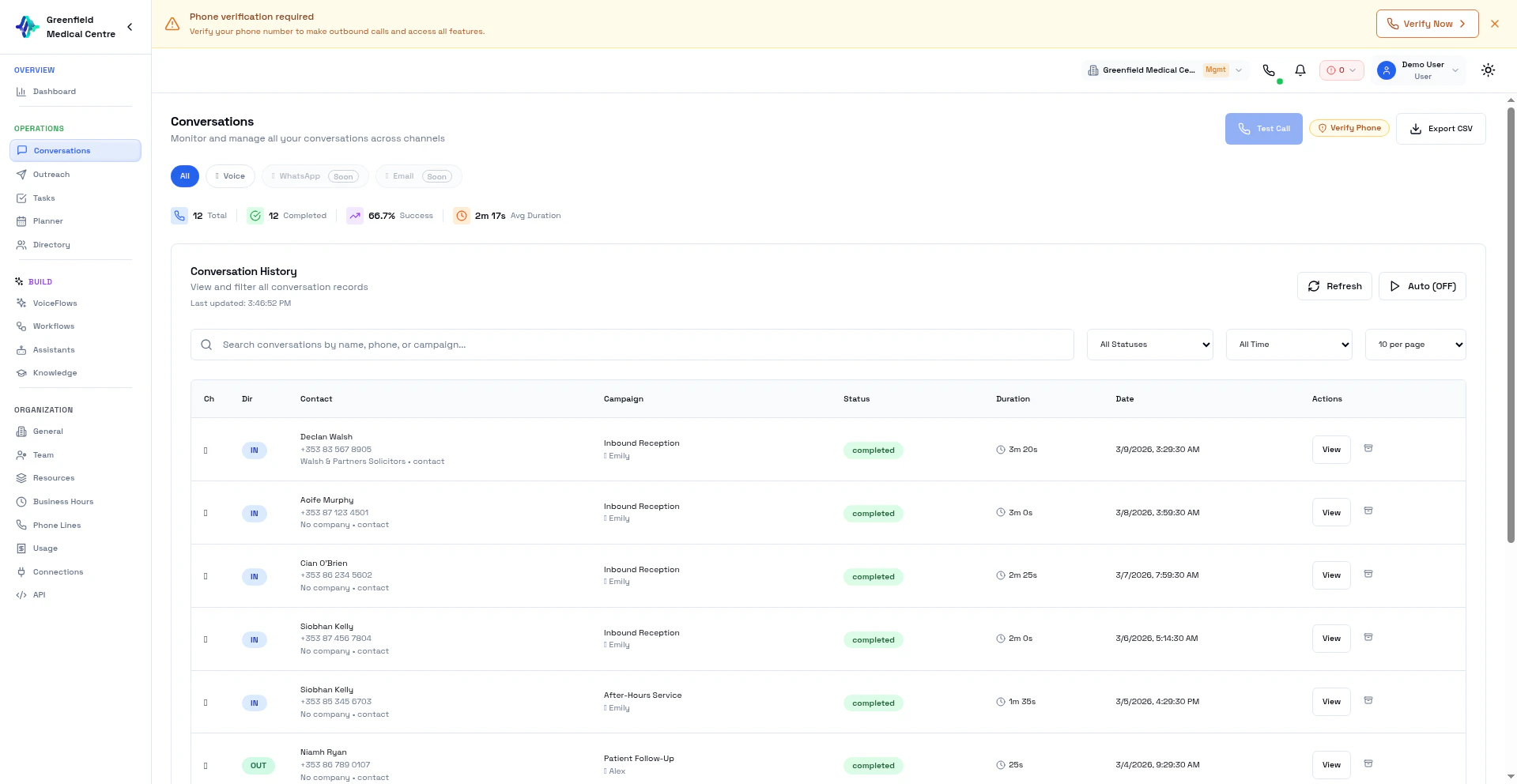 Conversations is the central hub for all your call history. Every call — inbound, outbound, or test — is recorded here with AI-generated transcripts, sentiment analysis, talk metrics, and actionable summaries.
## Conversation List
Each conversation shows:
* **Contact Name** — Who was on the call
* **Phone Number** — The number dialed
* **VoiceFlow** — Which VoiceFlow handled the call
* **Assistant** — Which AI assistant was used
* **Status** — Call outcome (Completed, No Answer, etc.)
* **Duration** — Length of the call
* **Sentiment** — AI-analyzed customer mood
## Viewing a Conversation
Click any conversation to see the full detail view — transcript on the left, AI analysis on the right.
Conversations is the central hub for all your call history. Every call — inbound, outbound, or test — is recorded here with AI-generated transcripts, sentiment analysis, talk metrics, and actionable summaries.
## Conversation List
Each conversation shows:
* **Contact Name** — Who was on the call
* **Phone Number** — The number dialed
* **VoiceFlow** — Which VoiceFlow handled the call
* **Assistant** — Which AI assistant was used
* **Status** — Call outcome (Completed, No Answer, etc.)
* **Duration** — Length of the call
* **Sentiment** — AI-analyzed customer mood
## Viewing a Conversation
Click any conversation to see the full detail view — transcript on the left, AI analysis on the right.
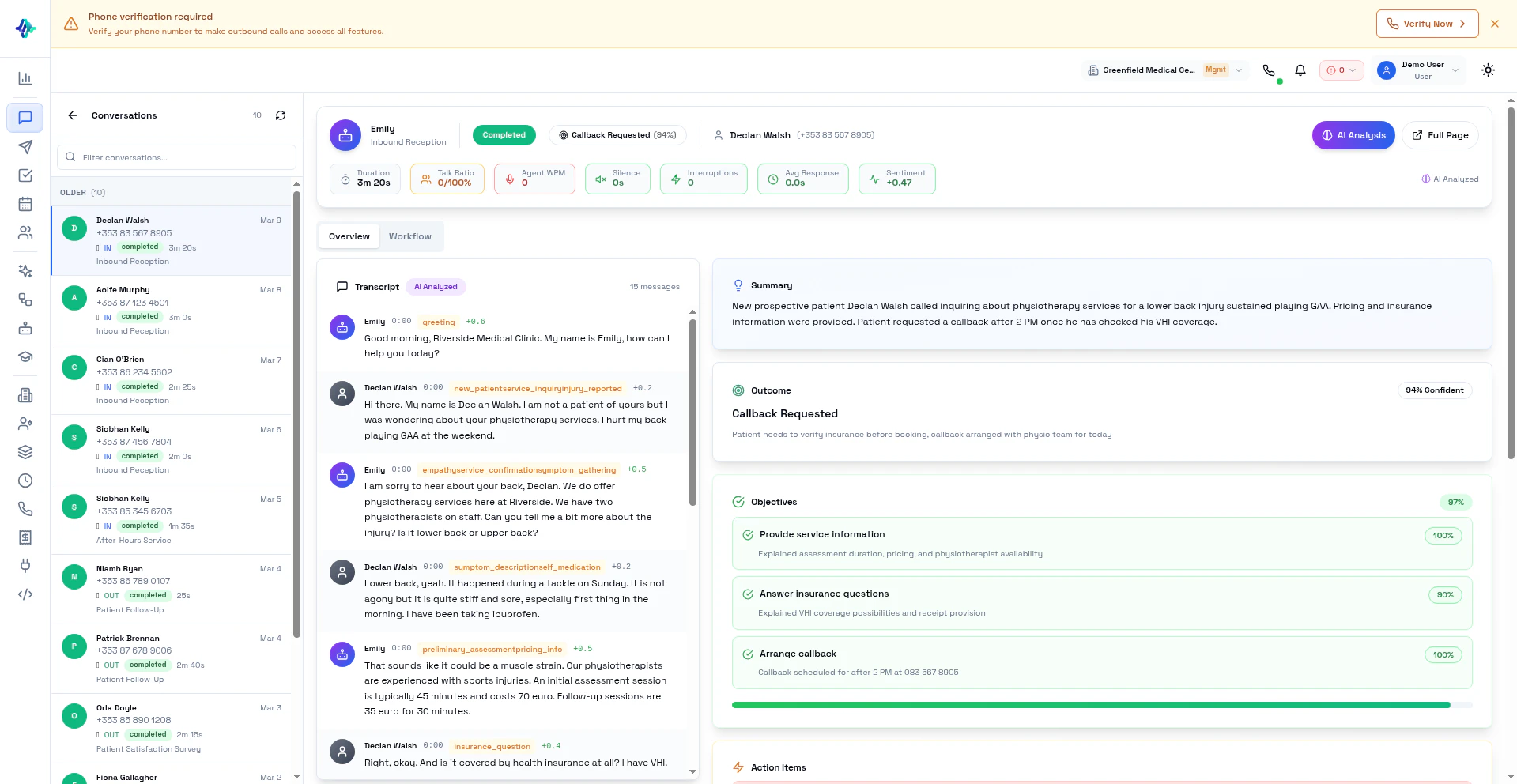 The detail view includes:
### Recording
Listen to the call recording with playback controls:
* Play, pause, skip forward/backward
* Adjust playback speed
### Transcript
Read the complete conversation with speaker labels and timestamps:
* **Agent** — What your AI assistant said
* **Customer** — What the contact said
The transcript has two layers:
1. **Analyzed Transcript** — AI-cleaned with per-segment sentiment scores and speaker labels
2. **Raw Transcript** — Original diarized recording transcription
### AI Analysis
Every completed call receives a two-stage AI analysis:
* **Summary** — Concise overview of what happened
* **Sentiment Timeline** — How customer sentiment changed throughout the call
* **Talk Metrics** — Who spoke more, interruptions, silence gaps
* **Action Items** — Suggested follow-ups extracted from the conversation
* **Objectives** — Whether the call met its VoiceFlow objectives (if configured)
* **Outcome Category** — Classification based on VoiceFlow settings
### Tasks
AI-generated tasks from the conversation (e.g., "Send pricing document to John"). These appear in the Tasks section automatically.
## Filtering and Search
Go to **Conversations** in the Analyze section.
Use filters to narrow down:
* **Status:** Completed, Failed, No Answer, Busy
* **Outcome:** Interested, Not Interested, Callback, Converted
* **Date Range:** Filter by time period
* **Search:** Find by contact name or phone number
Click any row to see the full conversation with recording, transcript, and analysis.
## Call Statuses
| Status | Description |
| ------------- | ---------------------------------------- |
| **Completed** | Call connected and conversation occurred |
| **No Answer** | No one picked up |
| **Busy** | Line was busy |
| **Failed** | Technical issue prevented the call |
| **Voicemail** | Call went to voicemail |
## Exporting Data
Export your conversation history for reporting:
Filter the list to the conversations you want to export.
Click the **Export CSV** button.
The CSV file downloads with call data including transcripts, outcomes, and summaries.
## Best Practices
**Review Early Calls:** Listen to the first few calls of any new VoiceFlow to catch issues early.
**Track Patterns:** Look for common objections or questions to improve your assistant's prompts.
**Use Sentiment Data:** Filter for negative-sentiment calls to identify problem areas.
## Next Steps
Adjust VoiceFlow settings based on call results
Refine your assistant based on transcripts
The detail view includes:
### Recording
Listen to the call recording with playback controls:
* Play, pause, skip forward/backward
* Adjust playback speed
### Transcript
Read the complete conversation with speaker labels and timestamps:
* **Agent** — What your AI assistant said
* **Customer** — What the contact said
The transcript has two layers:
1. **Analyzed Transcript** — AI-cleaned with per-segment sentiment scores and speaker labels
2. **Raw Transcript** — Original diarized recording transcription
### AI Analysis
Every completed call receives a two-stage AI analysis:
* **Summary** — Concise overview of what happened
* **Sentiment Timeline** — How customer sentiment changed throughout the call
* **Talk Metrics** — Who spoke more, interruptions, silence gaps
* **Action Items** — Suggested follow-ups extracted from the conversation
* **Objectives** — Whether the call met its VoiceFlow objectives (if configured)
* **Outcome Category** — Classification based on VoiceFlow settings
### Tasks
AI-generated tasks from the conversation (e.g., "Send pricing document to John"). These appear in the Tasks section automatically.
## Filtering and Search
Go to **Conversations** in the Analyze section.
Use filters to narrow down:
* **Status:** Completed, Failed, No Answer, Busy
* **Outcome:** Interested, Not Interested, Callback, Converted
* **Date Range:** Filter by time period
* **Search:** Find by contact name or phone number
Click any row to see the full conversation with recording, transcript, and analysis.
## Call Statuses
| Status | Description |
| ------------- | ---------------------------------------- |
| **Completed** | Call connected and conversation occurred |
| **No Answer** | No one picked up |
| **Busy** | Line was busy |
| **Failed** | Technical issue prevented the call |
| **Voicemail** | Call went to voicemail |
## Exporting Data
Export your conversation history for reporting:
Filter the list to the conversations you want to export.
Click the **Export CSV** button.
The CSV file downloads with call data including transcripts, outcomes, and summaries.
## Best Practices
**Review Early Calls:** Listen to the first few calls of any new VoiceFlow to catch issues early.
**Track Patterns:** Look for common objections or questions to improve your assistant's prompts.
**Use Sentiment Data:** Filter for negative-sentiment calls to identify problem areas.
## Next Steps
Adjust VoiceFlow settings based on call results
Refine your assistant based on transcripts