> ## Documentation Index
> Fetch the complete documentation index at: https://docs.eolasflow.ai/llms.txt
> Use this file to discover all available pages before exploring further.
# Dashboard
> Monitor your AI calling operations at a glance
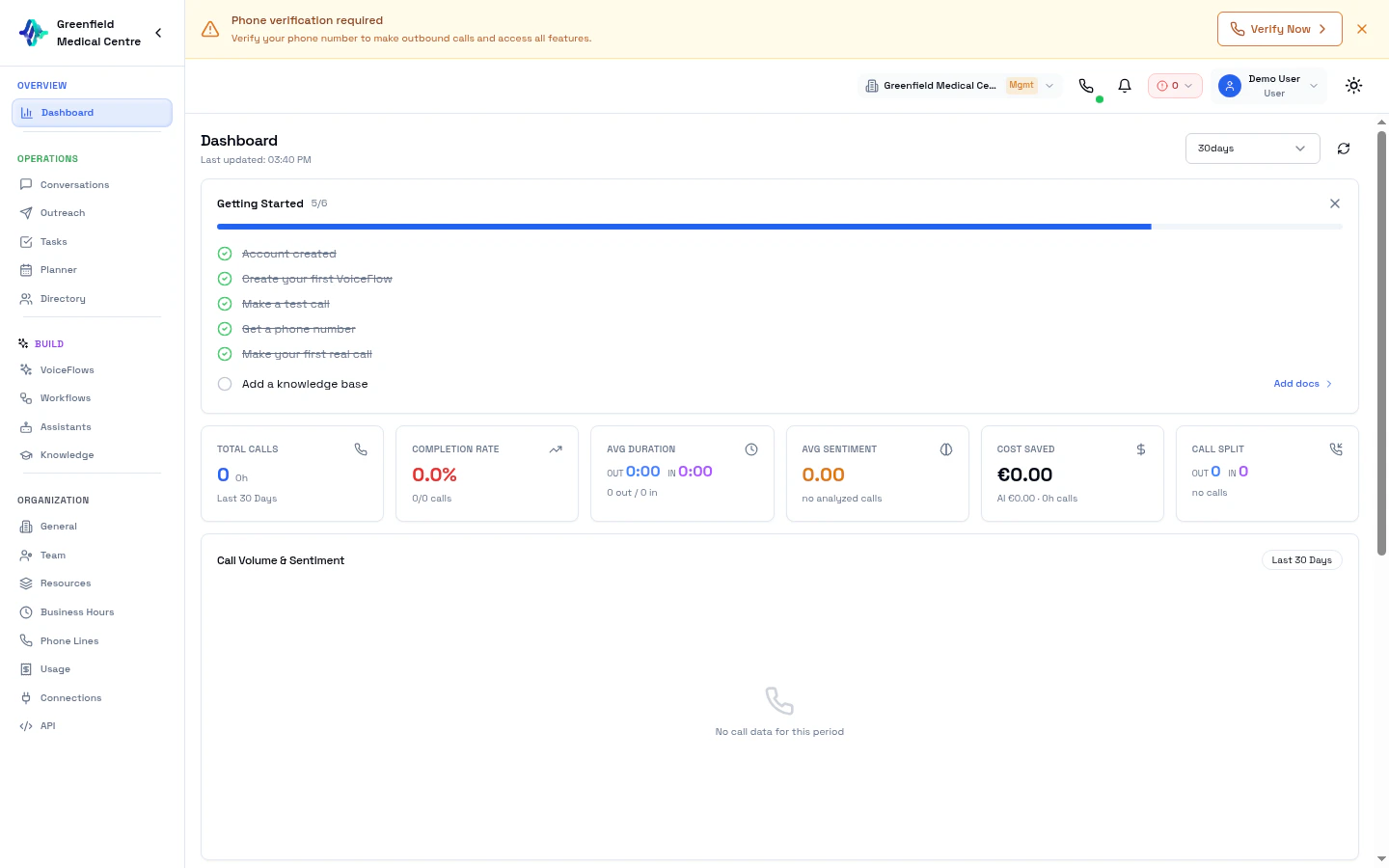 The Dashboard is your command center for monitoring AI calling operations. Get a real-time overview of contacts, VoiceFlows, calls, and system performance.
## Key Metrics
The Dashboard displays primary performance metrics at the top:
| Metric | Description |
| --------------------- | --------------------------------------------- |
| **Total Contacts** | Number of contacts in your directory |
| **Active VoiceFlows** | Currently live VoiceFlows |
| **Conversion Rate** | Percentage of calls achieving their objective |
| **Total Calls** | All-time call count |
## First-Time Setup
When you first log in, a **Welcome Modal** greets you with your free starter credits and a quick-start guide.
After dismissing the welcome screen, an **Onboarding Checklist** card appears at the top of your dashboard. It tracks six setup steps:
| Step | What to Do |
| ---------------------------- | --------------------------------------------- |
| **Create Account** | Sign up and verify your email |
| **Create a VoiceFlow** | Set up your first AI calling configuration |
| **Make a Test Call** | Use the Softphone to test your assistant |
| **Get a Phone Number** | Purchase a number from Phone Lines |
| **Make a Real Call** | Place your first live call |
| **Upload to Knowledge Base** | Add documents for your assistant to reference |
* A progress bar shows your completion percentage
* Each step links directly to the relevant page
* Dismiss the checklist when you're comfortable, or watch it celebrate when all steps are complete
Follow the checklist in order for the smoothest setup experience.
## Call Queue Status
If you have call queuing enabled on any VoiceFlow, a **Queue Status** card appears on your dashboard showing:
* **Active Calls** — Number of calls currently in progress
* **Queue Length** — Number of callers waiting
* **Caller List** — Each queued caller with their phone number, VoiceFlow name, wait time, and queue position
The card auto-refreshes every 5 seconds. A pulsing green indicator shows when the queue is active.
See [Call Queue](/guides/call-queue) for full setup instructions.
## Recent Call Activity
View your most recent calls with AI-enhanced insights:
* **Contact Name** — Who was called
* **Duration** — Call length
* **Outcome** — Result (Successful, No Answer, Not Interested, etc.)
* **Sentiment** — AI-analyzed mood (Positive, Neutral, Negative)
* **Summary** — AI-generated call summary
* **VoiceFlow** — Which VoiceFlow initiated the call
Sentiment analysis is powered by a two-stage AI pipeline: first cleaning and labeling transcript segments, then generating overall analysis with sentiment timeline.
## Quick Navigation
The sidebar organizes all features into six sections:
| Section | Contains |
| ------------------- | --------------------------------------------------------------------- |
| **Getting Started** | Dashboard |
| **Build** | VoiceFlows, VoiceFlow Studio, Assistants, Knowledge, Workflows |
| **Engage** | Directory, Outreach, Softphone, Planner, WhatsApp, Call Queue, Widget |
| **Analyze** | Conversations, Tasks |
| **Connect** | Connections, Webhooks, MCP, Automation |
| **Manage** | Organization, Enterprise, Phone Lines, Usage, API |
## Understanding Call Outcomes
| Outcome | Meaning |
| ------------------ | ------------------------------------ |
| **Successful** | Call achieved its objective |
| **No Answer** | Contact didn't pick up |
| **Not Interested** | Contact declined |
| **Transferred** | Call was transferred to a live agent |
| **Callback** | Contact requested a callback |
## Understanding Sentiment
AI analyzes each call to determine customer sentiment:
| Sentiment | Indicator |
| ------------ | ------------------------------------------- |
| **Positive** | Customer showed interest, engaged well |
| **Neutral** | Standard conversation, no strong indicators |
| **Negative** | Customer was frustrated or disengaged |
Use sentiment data to improve your assistant's prompts. Review calls with negative sentiment to identify areas for improvement.
## Next Steps
Add and organize your contacts
Set up AI calling VoiceFlows
Execute outbound campaigns
Analyze detailed call records
The Dashboard is your command center for monitoring AI calling operations. Get a real-time overview of contacts, VoiceFlows, calls, and system performance.
## Key Metrics
The Dashboard displays primary performance metrics at the top:
| Metric | Description |
| --------------------- | --------------------------------------------- |
| **Total Contacts** | Number of contacts in your directory |
| **Active VoiceFlows** | Currently live VoiceFlows |
| **Conversion Rate** | Percentage of calls achieving their objective |
| **Total Calls** | All-time call count |
## First-Time Setup
When you first log in, a **Welcome Modal** greets you with your free starter credits and a quick-start guide.
After dismissing the welcome screen, an **Onboarding Checklist** card appears at the top of your dashboard. It tracks six setup steps:
| Step | What to Do |
| ---------------------------- | --------------------------------------------- |
| **Create Account** | Sign up and verify your email |
| **Create a VoiceFlow** | Set up your first AI calling configuration |
| **Make a Test Call** | Use the Softphone to test your assistant |
| **Get a Phone Number** | Purchase a number from Phone Lines |
| **Make a Real Call** | Place your first live call |
| **Upload to Knowledge Base** | Add documents for your assistant to reference |
* A progress bar shows your completion percentage
* Each step links directly to the relevant page
* Dismiss the checklist when you're comfortable, or watch it celebrate when all steps are complete
Follow the checklist in order for the smoothest setup experience.
## Call Queue Status
If you have call queuing enabled on any VoiceFlow, a **Queue Status** card appears on your dashboard showing:
* **Active Calls** — Number of calls currently in progress
* **Queue Length** — Number of callers waiting
* **Caller List** — Each queued caller with their phone number, VoiceFlow name, wait time, and queue position
The card auto-refreshes every 5 seconds. A pulsing green indicator shows when the queue is active.
See [Call Queue](/guides/call-queue) for full setup instructions.
## Recent Call Activity
View your most recent calls with AI-enhanced insights:
* **Contact Name** — Who was called
* **Duration** — Call length
* **Outcome** — Result (Successful, No Answer, Not Interested, etc.)
* **Sentiment** — AI-analyzed mood (Positive, Neutral, Negative)
* **Summary** — AI-generated call summary
* **VoiceFlow** — Which VoiceFlow initiated the call
Sentiment analysis is powered by a two-stage AI pipeline: first cleaning and labeling transcript segments, then generating overall analysis with sentiment timeline.
## Quick Navigation
The sidebar organizes all features into six sections:
| Section | Contains |
| ------------------- | --------------------------------------------------------------------- |
| **Getting Started** | Dashboard |
| **Build** | VoiceFlows, VoiceFlow Studio, Assistants, Knowledge, Workflows |
| **Engage** | Directory, Outreach, Softphone, Planner, WhatsApp, Call Queue, Widget |
| **Analyze** | Conversations, Tasks |
| **Connect** | Connections, Webhooks, MCP, Automation |
| **Manage** | Organization, Enterprise, Phone Lines, Usage, API |
## Understanding Call Outcomes
| Outcome | Meaning |
| ------------------ | ------------------------------------ |
| **Successful** | Call achieved its objective |
| **No Answer** | Contact didn't pick up |
| **Not Interested** | Contact declined |
| **Transferred** | Call was transferred to a live agent |
| **Callback** | Contact requested a callback |
## Understanding Sentiment
AI analyzes each call to determine customer sentiment:
| Sentiment | Indicator |
| ------------ | ------------------------------------------- |
| **Positive** | Customer showed interest, engaged well |
| **Neutral** | Standard conversation, no strong indicators |
| **Negative** | Customer was frustrated or disengaged |
Use sentiment data to improve your assistant's prompts. Review calls with negative sentiment to identify areas for improvement.
## Next Steps
Add and organize your contacts
Set up AI calling VoiceFlows
Execute outbound campaigns
Analyze detailed call records