> ## Documentation Index
> Fetch the complete documentation index at: https://docs.eolasflow.ai/llms.txt
> Use this file to discover all available pages before exploring further.
# Directory
> Import, manage, and organize your contact lists
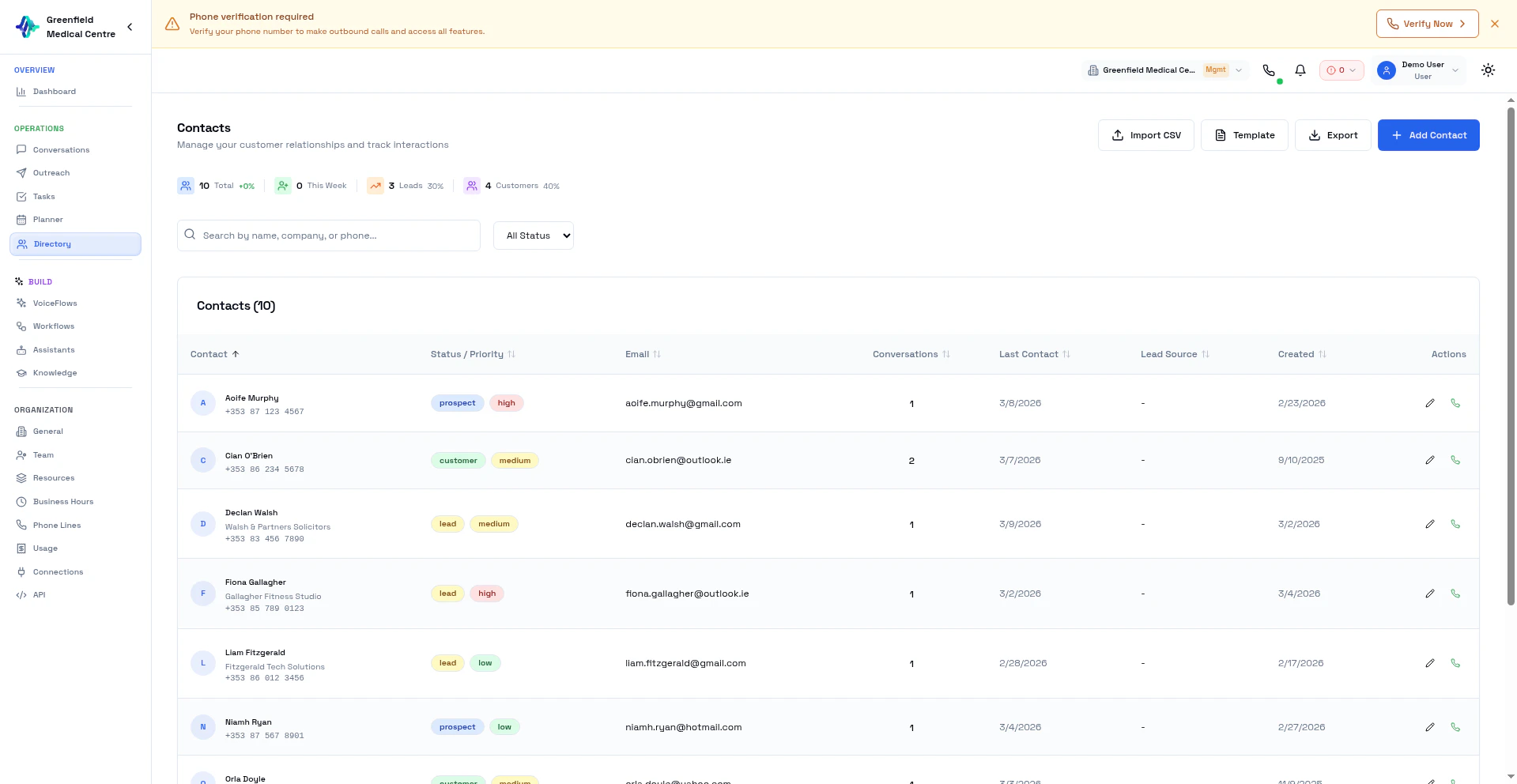 The Directory is your contact database. Import contacts, organize them with statuses and tags, and track all call interactions in one place.
## Contact Overview
Each contact record includes:
* **Name** — First and last name
* **Phone** — Primary phone number for calling
* **Email** — Email address (optional)
* **Company** — Organization they belong to
* **Status** — Lead, Prospect, Customer, or Churned
* **Priority** — High, Medium, or Low
* **Lead Source** — Where the contact came from
## Adding Contacts
### Add Single Contact
Go to **Directory** in the Workspace section and click **Add Contact**.
Fill in the contact information. At minimum, you need a name and phone number.
Choose the appropriate status (Lead, Prospect, etc.) and priority level.
Click **Save** to add the contact.
### Import from CSV
For bulk imports:
Click **Import CSV** then **Download Template** to get a properly formatted spreadsheet.
Open the template in Excel or Google Sheets and add your contacts.
Click **Import CSV**, select your completed spreadsheet, and upload.
Verify that columns are mapped correctly (Name to Name, Phone to Phone, etc.).
Click **Import**. Duplicates are automatically detected.
### CSV Format
| Column | Required | Description |
| ------------- | -------- | --------------------------------- |
| `name` | Yes | Full name of the contact |
| `phone` | Yes | Phone number with country code |
| `email` | No | Email address |
| `company` | No | Company or organization |
| `status` | No | Lead, Prospect, Customer, Churned |
| `priority` | No | High, Medium, Low |
| `lead_source` | No | Where the contact came from |
Phone numbers should include the country code (e.g., +1 for US, +44 for UK).
## Contact Statuses
| Status | Description |
| ------------ | --------------------------------- |
| **Lead** | New contact, not yet qualified |
| **Prospect** | Qualified, showing interest |
| **Customer** | Converted, active customer |
| **Churned** | Former customer, no longer active |
## Filtering and Search
Find contacts using:
* **Search** — Type a name, phone, or email
* **Status Filter** — Show only Leads, Prospects, etc.
* **Priority Filter** — Filter by High, Medium, or Low
## Contact Details
Click on any contact to see:
* Full contact information
* All calls made to them
* Call outcomes and AI summaries
* Interaction timeline
## Best Practices
**Clean Your Data:** Remove invalid phone numbers and duplicates before importing.
**Use Country Codes:** Standardize phone numbers with country codes (+1, +44, etc.).
**Respect Privacy:** Only import contacts who have consented to receive calls. Follow TCPA, GDPR, and local regulations.
## Next Steps
Use your contacts in a VoiceFlow
Call your contacts at scale
The Directory is your contact database. Import contacts, organize them with statuses and tags, and track all call interactions in one place.
## Contact Overview
Each contact record includes:
* **Name** — First and last name
* **Phone** — Primary phone number for calling
* **Email** — Email address (optional)
* **Company** — Organization they belong to
* **Status** — Lead, Prospect, Customer, or Churned
* **Priority** — High, Medium, or Low
* **Lead Source** — Where the contact came from
## Adding Contacts
### Add Single Contact
Go to **Directory** in the Workspace section and click **Add Contact**.
Fill in the contact information. At minimum, you need a name and phone number.
Choose the appropriate status (Lead, Prospect, etc.) and priority level.
Click **Save** to add the contact.
### Import from CSV
For bulk imports:
Click **Import CSV** then **Download Template** to get a properly formatted spreadsheet.
Open the template in Excel or Google Sheets and add your contacts.
Click **Import CSV**, select your completed spreadsheet, and upload.
Verify that columns are mapped correctly (Name to Name, Phone to Phone, etc.).
Click **Import**. Duplicates are automatically detected.
### CSV Format
| Column | Required | Description |
| ------------- | -------- | --------------------------------- |
| `name` | Yes | Full name of the contact |
| `phone` | Yes | Phone number with country code |
| `email` | No | Email address |
| `company` | No | Company or organization |
| `status` | No | Lead, Prospect, Customer, Churned |
| `priority` | No | High, Medium, Low |
| `lead_source` | No | Where the contact came from |
Phone numbers should include the country code (e.g., +1 for US, +44 for UK).
## Contact Statuses
| Status | Description |
| ------------ | --------------------------------- |
| **Lead** | New contact, not yet qualified |
| **Prospect** | Qualified, showing interest |
| **Customer** | Converted, active customer |
| **Churned** | Former customer, no longer active |
## Filtering and Search
Find contacts using:
* **Search** — Type a name, phone, or email
* **Status Filter** — Show only Leads, Prospects, etc.
* **Priority Filter** — Filter by High, Medium, or Low
## Contact Details
Click on any contact to see:
* Full contact information
* All calls made to them
* Call outcomes and AI summaries
* Interaction timeline
## Best Practices
**Clean Your Data:** Remove invalid phone numbers and duplicates before importing.
**Use Country Codes:** Standardize phone numbers with country codes (+1, +44, etc.).
**Respect Privacy:** Only import contacts who have consented to receive calls. Follow TCPA, GDPR, and local regulations.
## Next Steps
Use your contacts in a VoiceFlow
Call your contacts at scale