> ## Documentation Index
> Fetch the complete documentation index at: https://docs.eolasflow.ai/llms.txt
> Use this file to discover all available pages before exploring further.
# Knowledge Base
> Give your AI assistants access to your documents and information
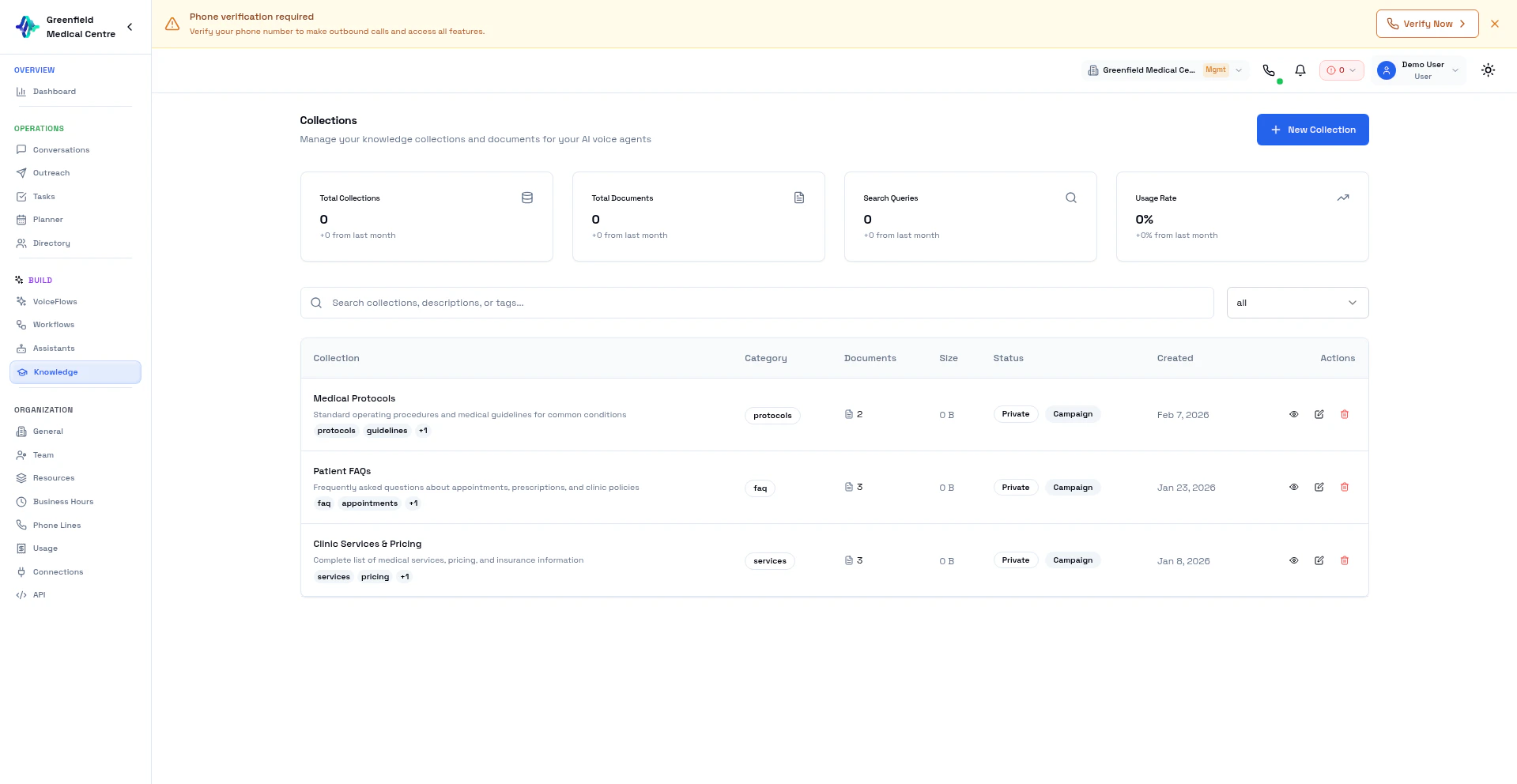 The Knowledge Base lets you upload documents that your AI assistants can reference during calls. When a customer asks a question, your assistant searches the knowledge base for accurate, up-to-date answers using semantic search (RAG).
## How It Works
1. You create **Collections** to organize your documents
2. You upload documents to collections
3. Documents are automatically processed and indexed with vector embeddings
4. You link collections to VoiceFlows
5. During calls, assistants search the knowledge base and speak the answers
Knowledge retrieval uses semantic search — the AI finds relevant information based on meaning, not just keywords.
## Creating a Collection
Go to **Knowledge** in the Team section and click **New Collection**.
Give it a descriptive name (e.g., "Product FAQs", "Pricing Information").
Describe what the collection contains.
* **Enable for VoiceFlows:** Allow assistants to use this collection
* **Public/Private:** Control visibility
Click **Create** to save.
## Collection Categories
| Category | Use For |
| ------------------------- | ----------------------------------- |
| **Product Specification** | Product details, features, specs |
| **FAQ** | Frequently asked questions |
| **Legal** | Terms, policies, compliance |
| **Training Material** | Internal guides and procedures |
| **Pricing** | Pricing sheets, discounts, packages |
| **General** | Miscellaneous documents |
## Adding Content to a Collection
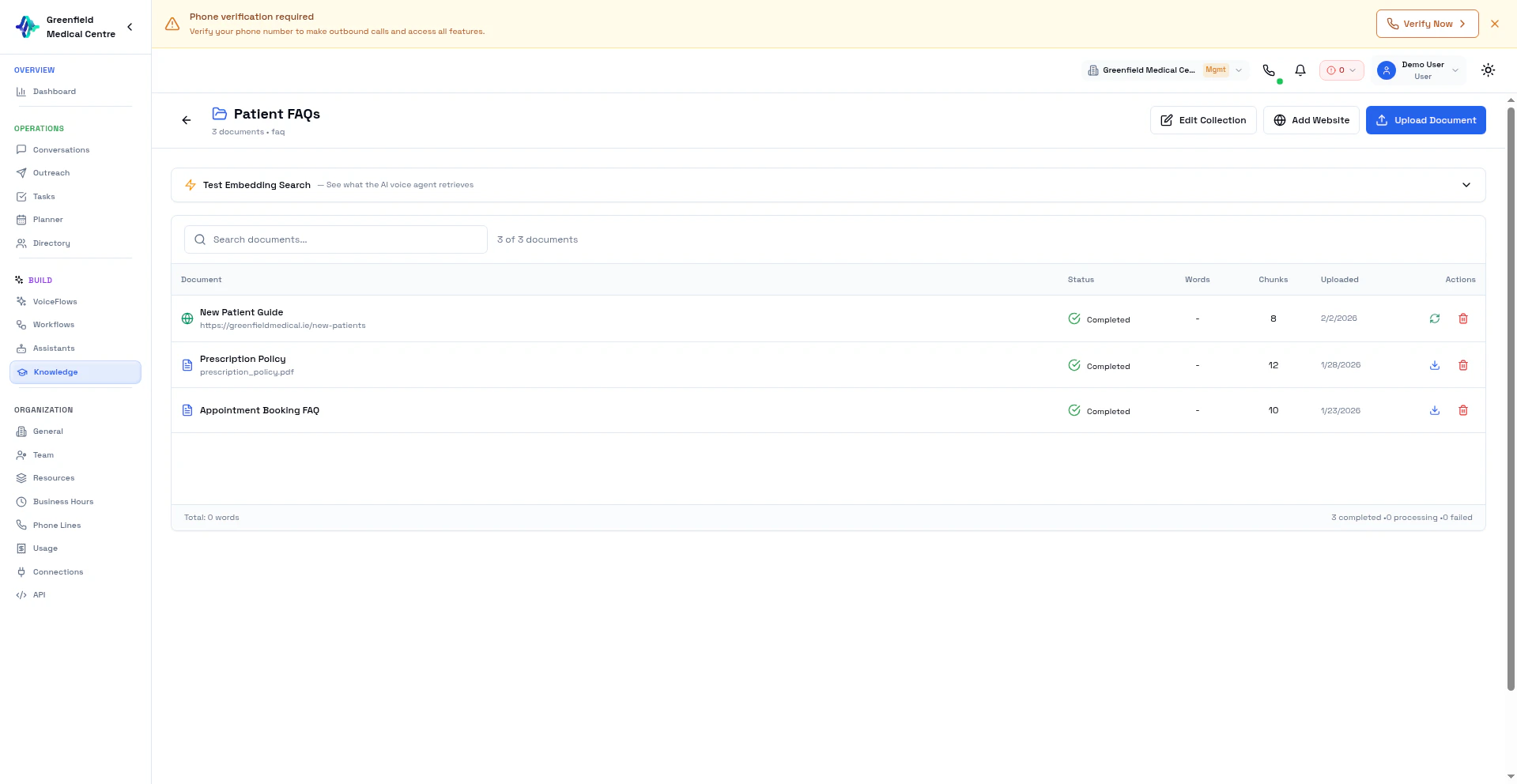
Open a collection to see its documents and add new content. You can add content in two ways: **upload files** or **crawl a website**.
The Knowledge Base lets you upload documents that your AI assistants can reference during calls. When a customer asks a question, your assistant searches the knowledge base for accurate, up-to-date answers using semantic search (RAG).
## How It Works
1. You create **Collections** to organize your documents
2. You upload documents to collections
3. Documents are automatically processed and indexed with vector embeddings
4. You link collections to VoiceFlows
5. During calls, assistants search the knowledge base and speak the answers
Knowledge retrieval uses semantic search — the AI finds relevant information based on meaning, not just keywords.
## Creating a Collection
Go to **Knowledge** in the Team section and click **New Collection**.
Give it a descriptive name (e.g., "Product FAQs", "Pricing Information").
Describe what the collection contains.
* **Enable for VoiceFlows:** Allow assistants to use this collection
* **Public/Private:** Control visibility
Click **Create** to save.
## Collection Categories
| Category | Use For |
| ------------------------- | ----------------------------------- |
| **Product Specification** | Product details, features, specs |
| **FAQ** | Frequently asked questions |
| **Legal** | Terms, policies, compliance |
| **Training Material** | Internal guides and procedures |
| **Pricing** | Pricing sheets, discounts, packages |
| **General** | Miscellaneous documents |
## Adding Content to a Collection
Open a collection to see its documents and add new content. You can add content in two ways: **upload files** or **crawl a website**.
 ### Upload Documents
Click on a collection to view its contents.
Click **Upload Document** in the collection toolbar.
Choose one or more files from your computer.
Documents are automatically chunked, embedded, and indexed. Status changes from Pending to Processing to Completed.
#### Supported File Formats
| Format | Extension | Max Size |
| -------- | --------------- | -------- |
| PDF | `.pdf` | 50 MB |
| Word | `.doc`, `.docx` | 50 MB |
| Text | `.txt` | 50 MB |
| Markdown | `.md` | 50 MB |
### Add a Website
Crawl any website and add its content to your knowledge base. The AI automatically scrapes pages, extracts text, and indexes it — so your assistant can answer questions based on your website content during live calls.
### Upload Documents
Click on a collection to view its contents.
Click **Upload Document** in the collection toolbar.
Choose one or more files from your computer.
Documents are automatically chunked, embedded, and indexed. Status changes from Pending to Processing to Completed.
#### Supported File Formats
| Format | Extension | Max Size |
| -------- | --------------- | -------- |
| PDF | `.pdf` | 50 MB |
| Word | `.doc`, `.docx` | 50 MB |
| Text | `.txt` | 50 MB |
| Markdown | `.md` | 50 MB |
### Add a Website
Crawl any website and add its content to your knowledge base. The AI automatically scrapes pages, extracts text, and indexes it — so your assistant can answer questions based on your website content during live calls.
 Click on a collection to view its contents.
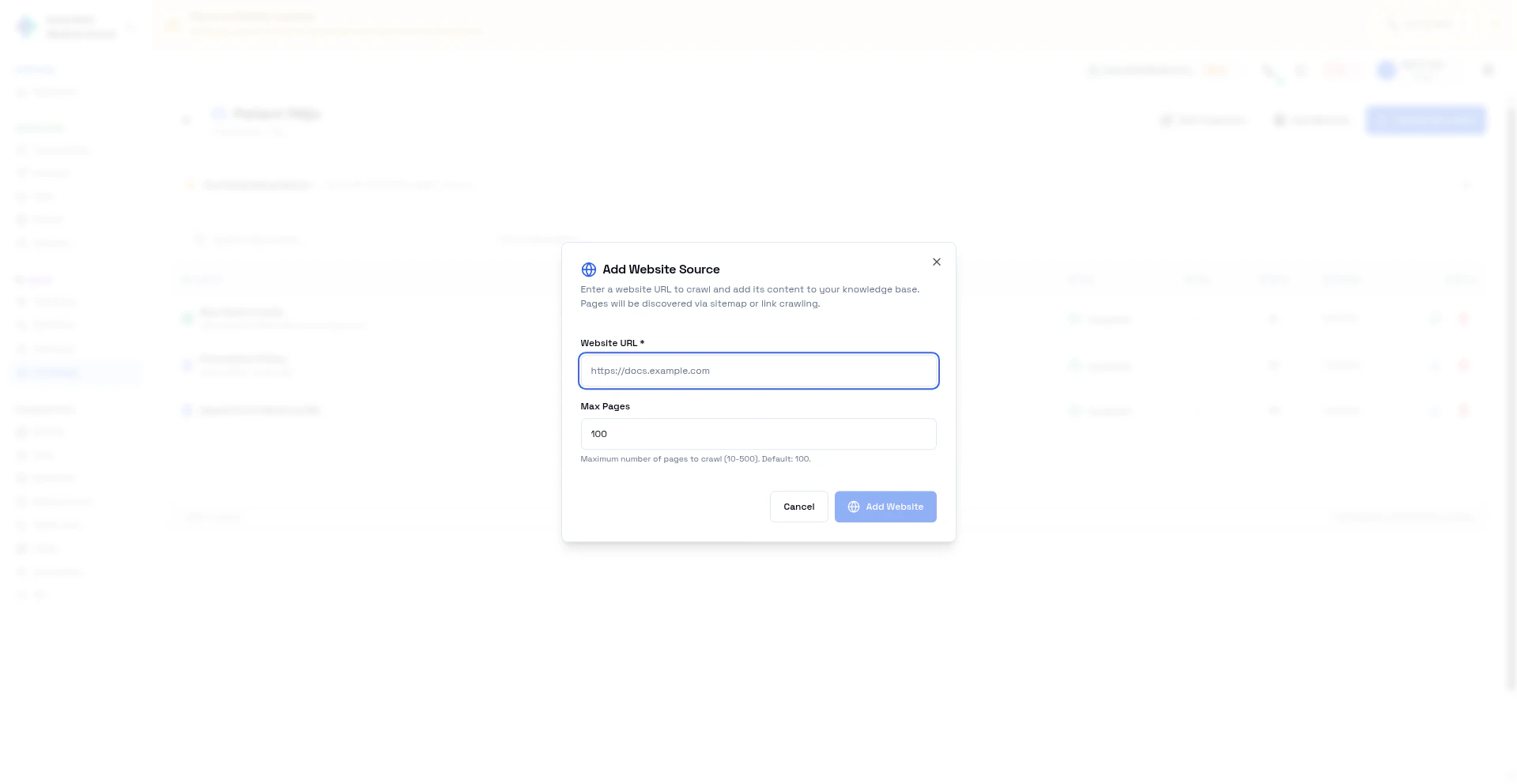
Click **Add Website** in the collection toolbar.
Enter the starting URL — for example, **[https://docs.example.com](https://docs.example.com)**. The crawler follows links from this page to discover related pages.
Choose how many pages to crawl (10 to 500, default: 100). Start with a lower number for focused content, or increase for larger sites.
Click to begin. The crawler visits each page, extracts text content, chunks it, and creates vector embeddings — just like uploaded documents.
Website documents appear in the collection with the source URL displayed. You can **re-crawl** a website at any time to pick up content changes — click the **Re-crawl website** button next to the document.
**Point the crawler at your FAQ or docs page** rather than your homepage. Focused crawls produce better results than crawling an entire marketing site.
### Test Embedding Search
After adding content, click **Test Embedding Search** to verify the AI can find the right answers. Enter a question and see which document chunks the AI retrieves — this is exactly what happens during a live call.
For best results, use well-structured documents with clear headings and organized content. The AI chunks documents by sections, so clear structure means more precise retrieval.
## Processing Status
| Status | Meaning |
| -------------- | -------------------------- |
| **Pending** | Waiting to be processed |
| **Processing** | Being chunked and embedded |
| **Completed** | Ready for use |
| **Failed** | Processing error |
## Using Knowledge in VoiceFlows
1. Go to **VoiceFlows** and edit your VoiceFlow
2. In **Knowledge Base** settings, select collections to include
3. Save the VoiceFlow
During calls, the assistant automatically searches these collections when relevant questions arise.
## Semantic Search
Your assistant uses meaning-based search:
* **Context-aware** — Understands the context of questions
* **Fuzzy matching** — Handles synonyms and related terms
* If a customer asks "What's the price?", the AI finds content about "cost", "pricing", "fees", or "rates"
## Best Practices
**Keep Documents Current:** Regularly update your knowledge base with the latest information.
**Use Clear Language:** Write in conversational language that AI can easily reference.
**Test Retrieval:** Ask your assistant questions to verify it finds the right information.
## Next Steps
Enable knowledge retrieval on your assistant
Link knowledge to VoiceFlows
Connect live external data sources
Click on a collection to view its contents.
Click **Add Website** in the collection toolbar.
Enter the starting URL — for example, **[https://docs.example.com](https://docs.example.com)**. The crawler follows links from this page to discover related pages.
Choose how many pages to crawl (10 to 500, default: 100). Start with a lower number for focused content, or increase for larger sites.
Click to begin. The crawler visits each page, extracts text content, chunks it, and creates vector embeddings — just like uploaded documents.
Website documents appear in the collection with the source URL displayed. You can **re-crawl** a website at any time to pick up content changes — click the **Re-crawl website** button next to the document.
**Point the crawler at your FAQ or docs page** rather than your homepage. Focused crawls produce better results than crawling an entire marketing site.
### Test Embedding Search
After adding content, click **Test Embedding Search** to verify the AI can find the right answers. Enter a question and see which document chunks the AI retrieves — this is exactly what happens during a live call.
For best results, use well-structured documents with clear headings and organized content. The AI chunks documents by sections, so clear structure means more precise retrieval.
## Processing Status
| Status | Meaning |
| -------------- | -------------------------- |
| **Pending** | Waiting to be processed |
| **Processing** | Being chunked and embedded |
| **Completed** | Ready for use |
| **Failed** | Processing error |
## Using Knowledge in VoiceFlows
1. Go to **VoiceFlows** and edit your VoiceFlow
2. In **Knowledge Base** settings, select collections to include
3. Save the VoiceFlow
During calls, the assistant automatically searches these collections when relevant questions arise.
## Semantic Search
Your assistant uses meaning-based search:
* **Context-aware** — Understands the context of questions
* **Fuzzy matching** — Handles synonyms and related terms
* If a customer asks "What's the price?", the AI finds content about "cost", "pricing", "fees", or "rates"
## Best Practices
**Keep Documents Current:** Regularly update your knowledge base with the latest information.
**Use Clear Language:** Write in conversational language that AI can easily reference.
**Test Retrieval:** Ask your assistant questions to verify it finds the right information.
## Next Steps
Enable knowledge retrieval on your assistant
Link knowledge to VoiceFlows
Connect live external data sources