> ## Documentation Index
> Fetch the complete documentation index at: https://docs.eolasflow.ai/llms.txt
> Use this file to discover all available pages before exploring further.
# Organization Settings
> Configure your organization, manage team members, and control access
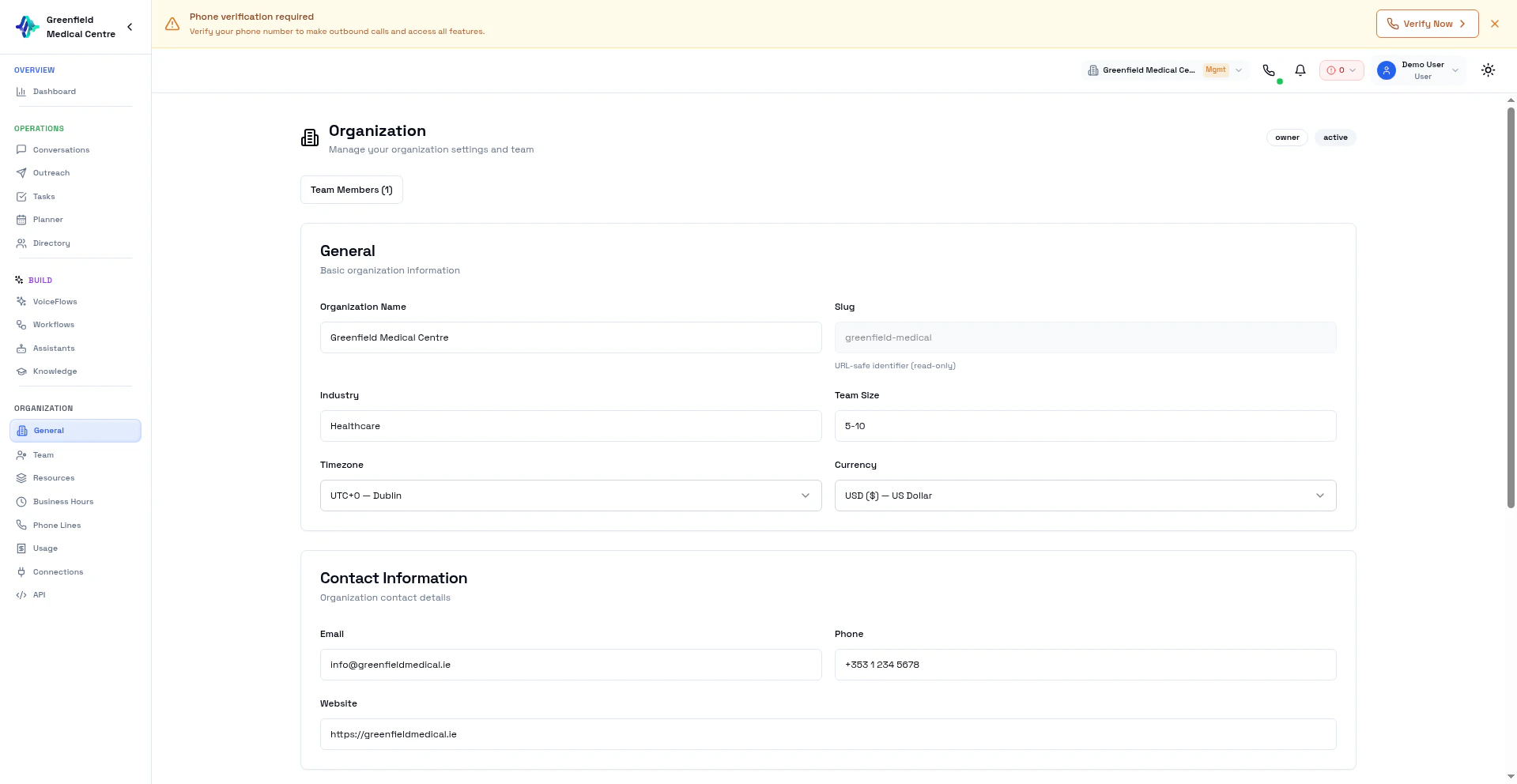 Organization settings let you configure your team, manage members, and control platform access. Every resource in EolasFlow (assistants, VoiceFlows, contacts, phone lines) is scoped to your organization.
## General Settings
Navigate to **General** in the Organization section to configure:
* **Organization Name** — Your company or team name
* **Timezone** — Default timezone for scheduling and reporting
* **Twilio Credentials** — Connect your own Twilio account (Account SID, API Key, API Secret, TwiML App)
### Bring Your Own Keys (BYOK)
Enterprise organizations can use their own API keys for AI providers instead of EolasFlow's shared keys. This gives you full control over costs and rate limits.
Supported BYOK providers:
* OpenAI
* ElevenLabs
* Cartesia
* Groq
* Sarvam
* And more
## Team Members
Navigate to **Users** in the Organization section to manage your team.
### Invite Members
Navigate to **Users** in the Organization section.
Click **Invite Member** and enter their email address.
Choose their role:
* **Admin** — Full access to all settings and resources
* **Member** — Access to workspace features (VoiceFlows, contacts, conversations)
### Manage Members
View all team members, their roles, and last activity. Remove members or change roles as needed.
## Multi-Tenancy
All resources in EolasFlow are organization-scoped:
* Assistants created by any team member are visible to the whole organization
* Contacts, VoiceFlows, and conversations are shared within the organization
* Phone lines and credits belong to the organization
For white-label branding, sub-organization management, and BYOK, see [Enterprise](/guides/enterprise).
## Next Steps
Set up phone numbers for your organization
Monitor credits and spending
Set up webhooks and MCP integrations
Generate API keys for programmatic access
White-label, sub-orgs, and BYOK
Organization settings let you configure your team, manage members, and control platform access. Every resource in EolasFlow (assistants, VoiceFlows, contacts, phone lines) is scoped to your organization.
## General Settings
Navigate to **General** in the Organization section to configure:
* **Organization Name** — Your company or team name
* **Timezone** — Default timezone for scheduling and reporting
* **Twilio Credentials** — Connect your own Twilio account (Account SID, API Key, API Secret, TwiML App)
### Bring Your Own Keys (BYOK)
Enterprise organizations can use their own API keys for AI providers instead of EolasFlow's shared keys. This gives you full control over costs and rate limits.
Supported BYOK providers:
* OpenAI
* ElevenLabs
* Cartesia
* Groq
* Sarvam
* And more
## Team Members
Navigate to **Users** in the Organization section to manage your team.
### Invite Members
Navigate to **Users** in the Organization section.
Click **Invite Member** and enter their email address.
Choose their role:
* **Admin** — Full access to all settings and resources
* **Member** — Access to workspace features (VoiceFlows, contacts, conversations)
### Manage Members
View all team members, their roles, and last activity. Remove members or change roles as needed.
## Multi-Tenancy
All resources in EolasFlow are organization-scoped:
* Assistants created by any team member are visible to the whole organization
* Contacts, VoiceFlows, and conversations are shared within the organization
* Phone lines and credits belong to the organization
For white-label branding, sub-organization management, and BYOK, see [Enterprise](/guides/enterprise).
## Next Steps
Set up phone numbers for your organization
Monitor credits and spending
Set up webhooks and MCP integrations
Generate API keys for programmatic access
White-label, sub-orgs, and BYOK