> ## Documentation Index
> Fetch the complete documentation index at: https://docs.eolasflow.ai/llms.txt
> Use this file to discover all available pages before exploring further.
# Phone Lines
> Purchase, configure, and manage your calling phone numbers
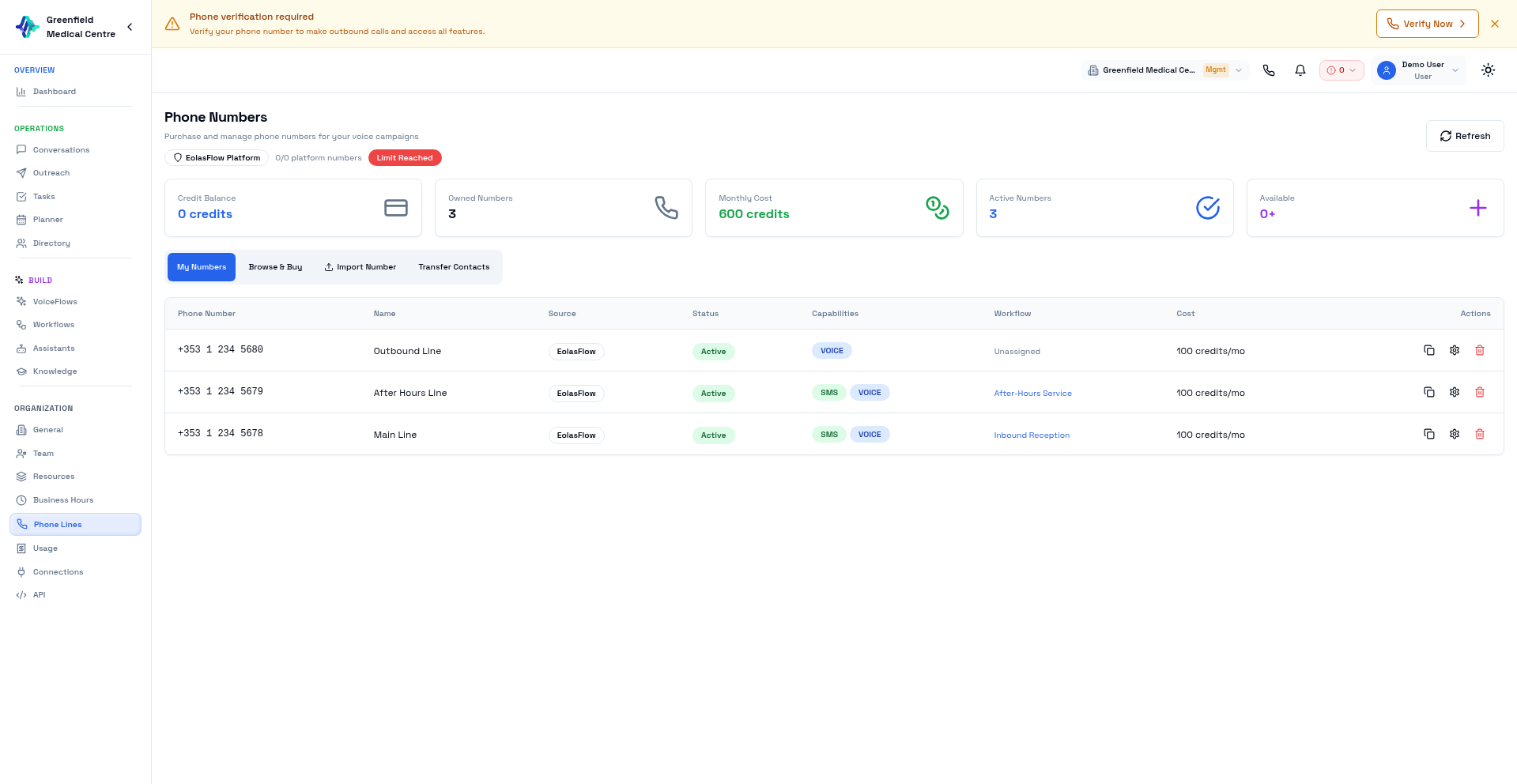 Phone Lines are the numbers your AI assistants use for calls — both as outbound caller ID and for receiving inbound calls. EolasFlow makes it easy to purchase and manage numbers from around the world via Twilio.
## Phone Line Overview
Your Phone Lines page shows:
* **Number** — The phone number
* **Country** — Where the number is registered
* **Type** — Local, Mobile, or Toll-Free
* **Status** — Active, Pending, or Inactive
* **Monthly Cost** — Recurring charge
## Purchasing a Phone Line
Go to **Phone Lines** in the Organization section and click **Browse & Buy**.
Choose the country where you want a number. Numbers are available in 40+ countries.
Optionally enter an area code to find numbers in a specific region.
Browse available numbers and click **Buy**.
Review the monthly cost and confirm. The number is available immediately.
**Local Presence:** Choose numbers with local area codes in your target market. People are more likely to answer calls from familiar area codes.
## Number Types
| Type | Best For | Features |
| ------------- | ---------------- | ------------------------------------ |
| **Local** | Regional calling | Familiar area code, lower cost |
| **Mobile** | SMS + Voice | Can send and receive text messages |
| **Toll-Free** | National reach | Free for callers, professional image |
## Managing Phone Lines
### My Numbers
Click the **My Numbers** tab to see all your purchased numbers.
### Release a Number
If you no longer need a number:
1. Find the number in your list
2. Click **Release**
3. Confirm
Releasing a number is permanent. You may not be able to get the same number back.
## Using Numbers in VoiceFlows
When creating a VoiceFlow, select which phone line to use:
1. Go to **VoiceFlows** and create or edit a VoiceFlow
2. In the **Phone Line** dropdown, select from your purchased numbers
3. This number will be the caller ID for all outbound calls and the receiving line for inbound
Each VoiceFlow uses one phone line. Create separate VoiceFlows if you need different caller IDs.
## Importing Existing Numbers
Already have phone numbers with Twilio or WhatsApp Business? Import them into EolasFlow instead of purchasing new ones. Click the **Import Number** tab on the Phone Lines page.
EolasFlow supports importing from multiple providers:
| Provider | Status | Use Case |
| -------------- | ----------- | ------------------------------------------------- |
| **Twilio** | Available | Import existing Twilio numbers for voice + SMS |
| **WhatsApp** | Available | Connect WhatsApp Business numbers for voice calls |
| **Telnyx** | Coming Soon | — |
| **SignalWire** | Coming Soon | — |
| **Vonage** | Coming Soon | — |
| **Bandwidth** | Coming Soon | — |
### Import from Twilio
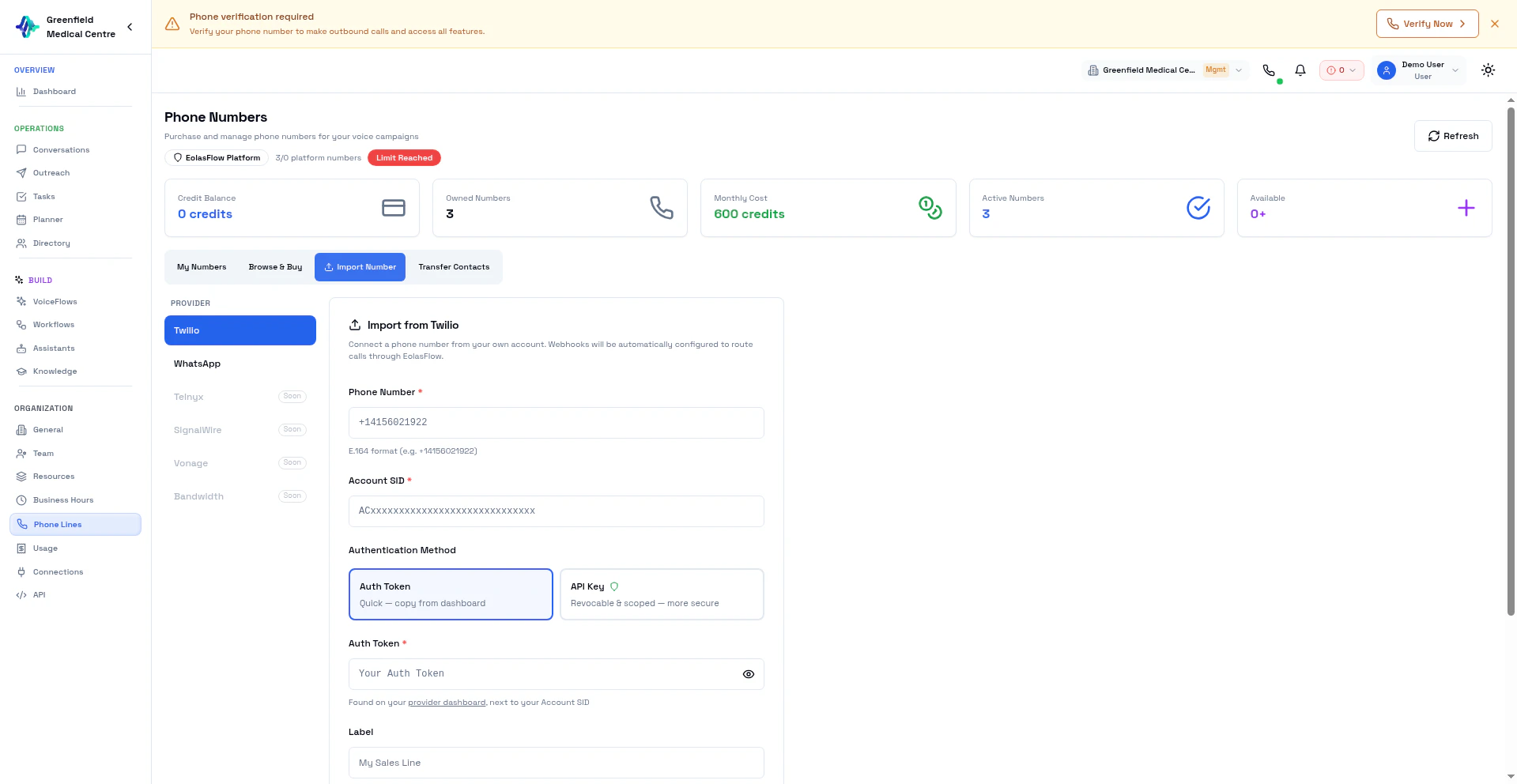
Go to **Phone Lines** and click the **Import Number** tab, then select **Twilio**.
Enter the number in E.164 format (e.g., `+14156021922`).
Your Twilio Account SID, found on your Twilio dashboard.
* **Auth Token** — Quick setup. Copy from your Twilio dashboard.
* **API Key** — More secure. Revocable and scoped. Recommended for production.
Paste your Auth Token or API Key + Secret.
* **Label** — A friendly name for this number (e.g., "Sales Line")
* **Enable SMS** — Toggle on if you want SMS messaging on this number
Click **Validate & Import**. EolasFlow verifies the number and automatically configures webhooks to route calls through the platform.
Phone Lines are the numbers your AI assistants use for calls — both as outbound caller ID and for receiving inbound calls. EolasFlow makes it easy to purchase and manage numbers from around the world via Twilio.
## Phone Line Overview
Your Phone Lines page shows:
* **Number** — The phone number
* **Country** — Where the number is registered
* **Type** — Local, Mobile, or Toll-Free
* **Status** — Active, Pending, or Inactive
* **Monthly Cost** — Recurring charge
## Purchasing a Phone Line
Go to **Phone Lines** in the Organization section and click **Browse & Buy**.
Choose the country where you want a number. Numbers are available in 40+ countries.
Optionally enter an area code to find numbers in a specific region.
Browse available numbers and click **Buy**.
Review the monthly cost and confirm. The number is available immediately.
**Local Presence:** Choose numbers with local area codes in your target market. People are more likely to answer calls from familiar area codes.
## Number Types
| Type | Best For | Features |
| ------------- | ---------------- | ------------------------------------ |
| **Local** | Regional calling | Familiar area code, lower cost |
| **Mobile** | SMS + Voice | Can send and receive text messages |
| **Toll-Free** | National reach | Free for callers, professional image |
## Managing Phone Lines
### My Numbers
Click the **My Numbers** tab to see all your purchased numbers.
### Release a Number
If you no longer need a number:
1. Find the number in your list
2. Click **Release**
3. Confirm
Releasing a number is permanent. You may not be able to get the same number back.
## Using Numbers in VoiceFlows
When creating a VoiceFlow, select which phone line to use:
1. Go to **VoiceFlows** and create or edit a VoiceFlow
2. In the **Phone Line** dropdown, select from your purchased numbers
3. This number will be the caller ID for all outbound calls and the receiving line for inbound
Each VoiceFlow uses one phone line. Create separate VoiceFlows if you need different caller IDs.
## Importing Existing Numbers
Already have phone numbers with Twilio or WhatsApp Business? Import them into EolasFlow instead of purchasing new ones. Click the **Import Number** tab on the Phone Lines page.
EolasFlow supports importing from multiple providers:
| Provider | Status | Use Case |
| -------------- | ----------- | ------------------------------------------------- |
| **Twilio** | Available | Import existing Twilio numbers for voice + SMS |
| **WhatsApp** | Available | Connect WhatsApp Business numbers for voice calls |
| **Telnyx** | Coming Soon | — |
| **SignalWire** | Coming Soon | — |
| **Vonage** | Coming Soon | — |
| **Bandwidth** | Coming Soon | — |
### Import from Twilio
Go to **Phone Lines** and click the **Import Number** tab, then select **Twilio**.
Enter the number in E.164 format (e.g., `+14156021922`).
Your Twilio Account SID, found on your Twilio dashboard.
* **Auth Token** — Quick setup. Copy from your Twilio dashboard.
* **API Key** — More secure. Revocable and scoped. Recommended for production.
Paste your Auth Token or API Key + Secret.
* **Label** — A friendly name for this number (e.g., "Sales Line")
* **Enable SMS** — Toggle on if you want SMS messaging on this number
Click **Validate & Import**. EolasFlow verifies the number and automatically configures webhooks to route calls through the platform.
 Webhooks are automatically configured on your Twilio number to route calls through EolasFlow. Your credentials are stored securely server-side and never exposed to the browser. You can disconnect the number at any time to restore original webhooks.
### Import from WhatsApp Business
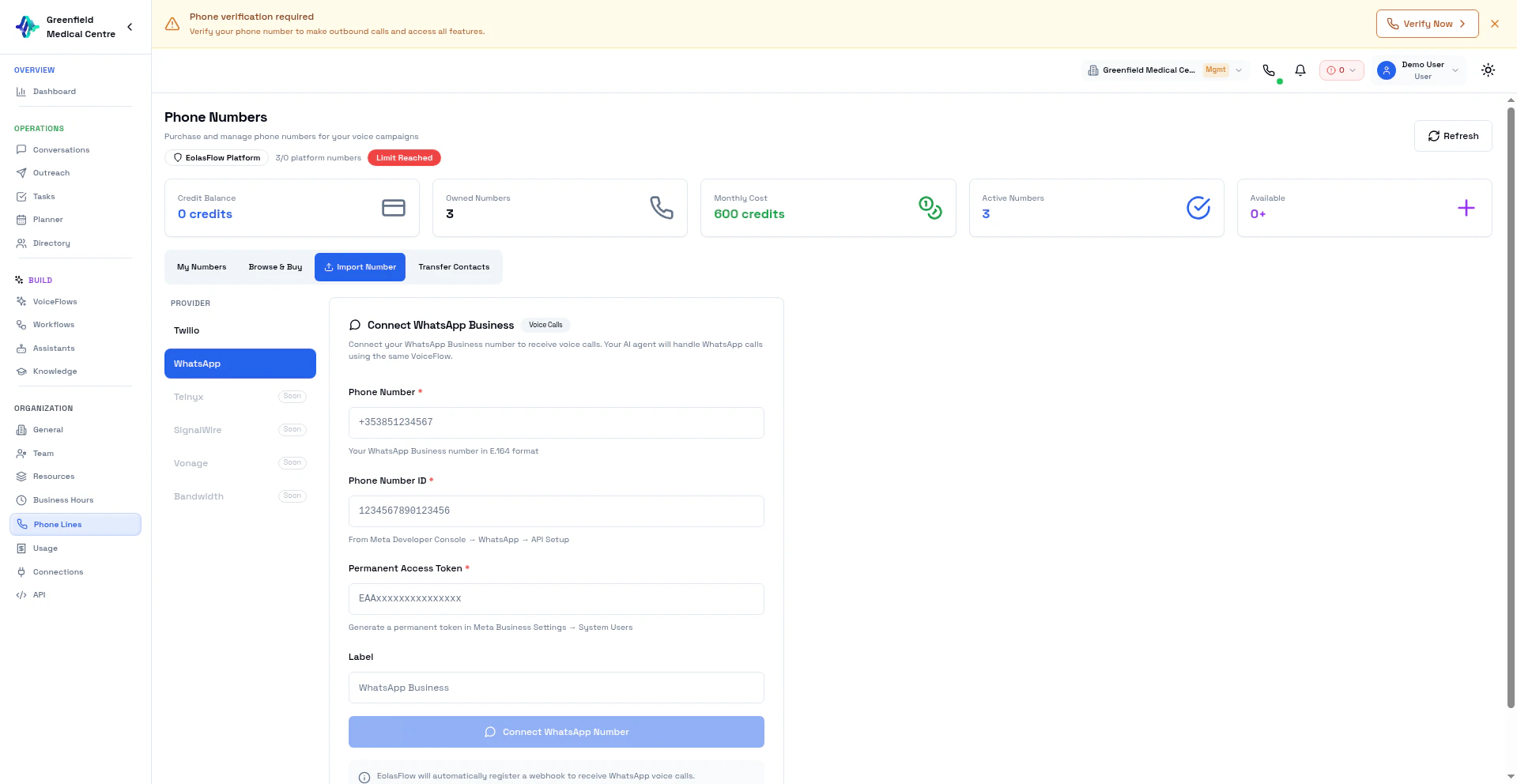
Go to **Phone Lines** → **Import Number** → select **WhatsApp**.
Your WhatsApp Business phone number in E.164 format.
The Phone Number ID from your Meta Business Manager / WhatsApp Cloud API dashboard.
A permanent access token from Meta for API access to this number.
Add a friendly name for this number.
Click **Connect WhatsApp Number**. EolasFlow registers the webhook to receive WhatsApp calls and messages on this number.
Webhooks are automatically configured on your Twilio number to route calls through EolasFlow. Your credentials are stored securely server-side and never exposed to the browser. You can disconnect the number at any time to restore original webhooks.
### Import from WhatsApp Business
Go to **Phone Lines** → **Import Number** → select **WhatsApp**.
Your WhatsApp Business phone number in E.164 format.
The Phone Number ID from your Meta Business Manager / WhatsApp Cloud API dashboard.
A permanent access token from Meta for API access to this number.
Add a friendly name for this number.
Click **Connect WhatsApp Number**. EolasFlow registers the webhook to receive WhatsApp calls and messages on this number.
 After importing a WhatsApp number, you can enable **WhatsApp Messaging** on a VoiceFlow to handle both voice calls and text conversations on the same number. See [WhatsApp Messaging](/guides/whatsapp).
## Transfer Contacts
Transfer contacts are the people and departments your AI can transfer calls to. When the Transfer tool is active on a VoiceFlow, the AI uses this list to route calls to the right person.
Click the **Transfer Contacts** tab on the Phone Lines page to manage your transfer destinations.
After importing a WhatsApp number, you can enable **WhatsApp Messaging** on a VoiceFlow to handle both voice calls and text conversations on the same number. See [WhatsApp Messaging](/guides/whatsapp).
## Transfer Contacts
Transfer contacts are the people and departments your AI can transfer calls to. When the Transfer tool is active on a VoiceFlow, the AI uses this list to route calls to the right person.
Click the **Transfer Contacts** tab on the Phone Lines page to manage your transfer destinations.
 ### Adding a Transfer Contact
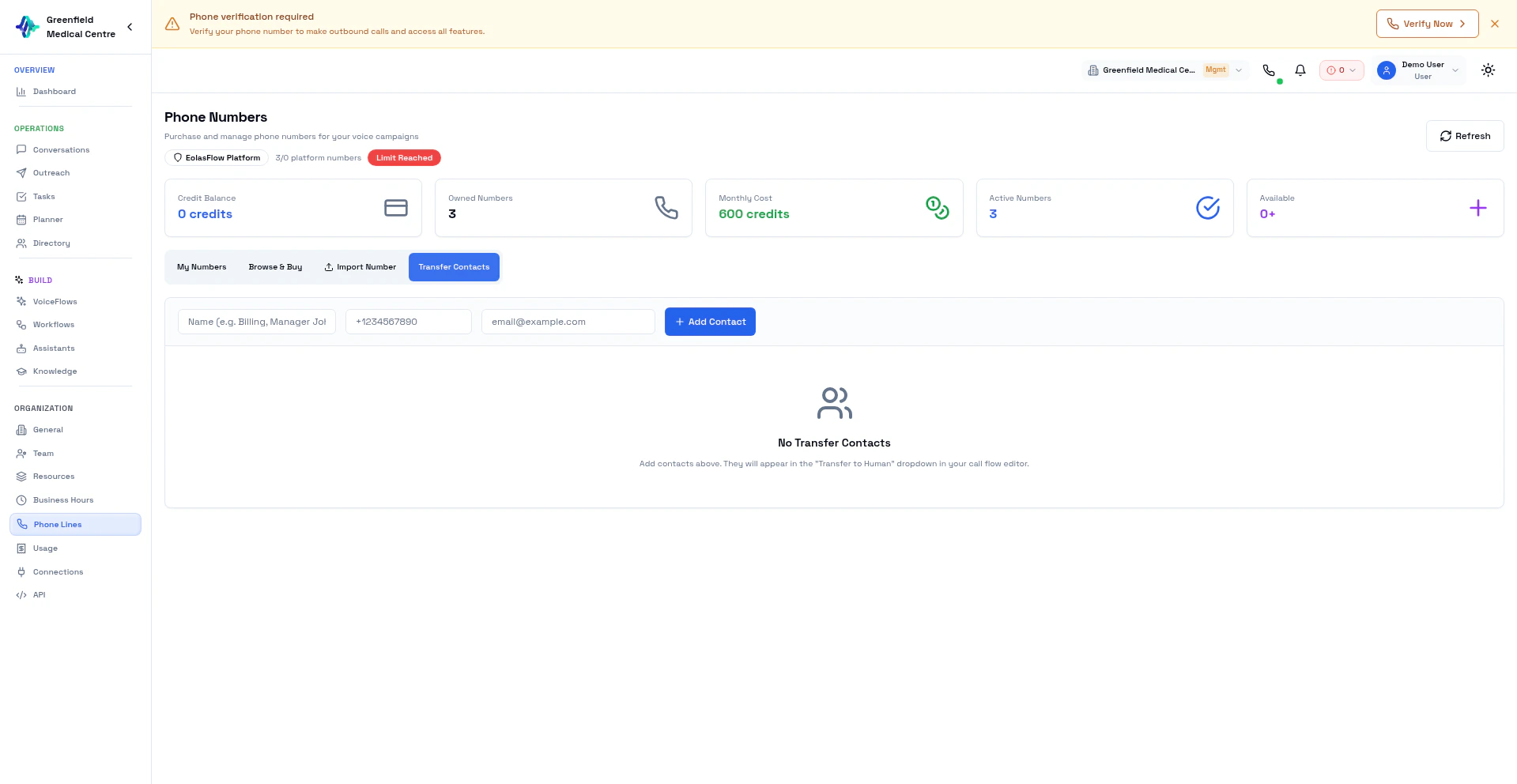
Navigate to **Phone Lines** and click the **Transfer Contacts** tab.
Fill in the contact information:
* **Name** — A descriptive label (e.g., "Billing Department", "Manager John", "Dr. Smith")
* **Phone Number** — The number to transfer to (E.164 format)
* **Email** — Optional email address for the contact
The contact is saved and immediately available in the Transfer tool dropdown in VoiceFlow Studio.
When the AI needs to transfer a call, it selects from this list. The contact name helps the AI match caller requests — for example, if a caller says "I need to speak to billing," the AI matches that to a transfer contact named "Billing Department."
Use clear, descriptive names for transfer contacts. Names like "Billing", "Sales Manager", or "Dr. Smith — Dermatology" help the AI route transfers accurately.
## Best Practices
**Start with One Number:** Begin with a single number to test, then add more as you scale.
**Match Your Market:** Use local numbers where your contacts are located.
**Keep Numbers Active:** Numbers build reputation over time. Avoid frequently switching.
## Next Steps
Use your phone line in a VoiceFlow
Make test calls from your browser
### Adding a Transfer Contact
Navigate to **Phone Lines** and click the **Transfer Contacts** tab.
Fill in the contact information:
* **Name** — A descriptive label (e.g., "Billing Department", "Manager John", "Dr. Smith")
* **Phone Number** — The number to transfer to (E.164 format)
* **Email** — Optional email address for the contact
The contact is saved and immediately available in the Transfer tool dropdown in VoiceFlow Studio.
When the AI needs to transfer a call, it selects from this list. The contact name helps the AI match caller requests — for example, if a caller says "I need to speak to billing," the AI matches that to a transfer contact named "Billing Department."
Use clear, descriptive names for transfer contacts. Names like "Billing", "Sales Manager", or "Dr. Smith — Dermatology" help the AI route transfers accurately.
## Best Practices
**Start with One Number:** Begin with a single number to test, then add more as you scale.
**Match Your Market:** Use local numbers where your contacts are located.
**Keep Numbers Active:** Numbers build reputation over time. Avoid frequently switching.
## Next Steps
Use your phone line in a VoiceFlow
Make test calls from your browser