> ## Documentation Index
> Fetch the complete documentation index at: https://docs.eolasflow.ai/llms.txt
> Use this file to discover all available pages before exploring further.
# Planner
> Appointment scheduling with multi-resource support and AI booking
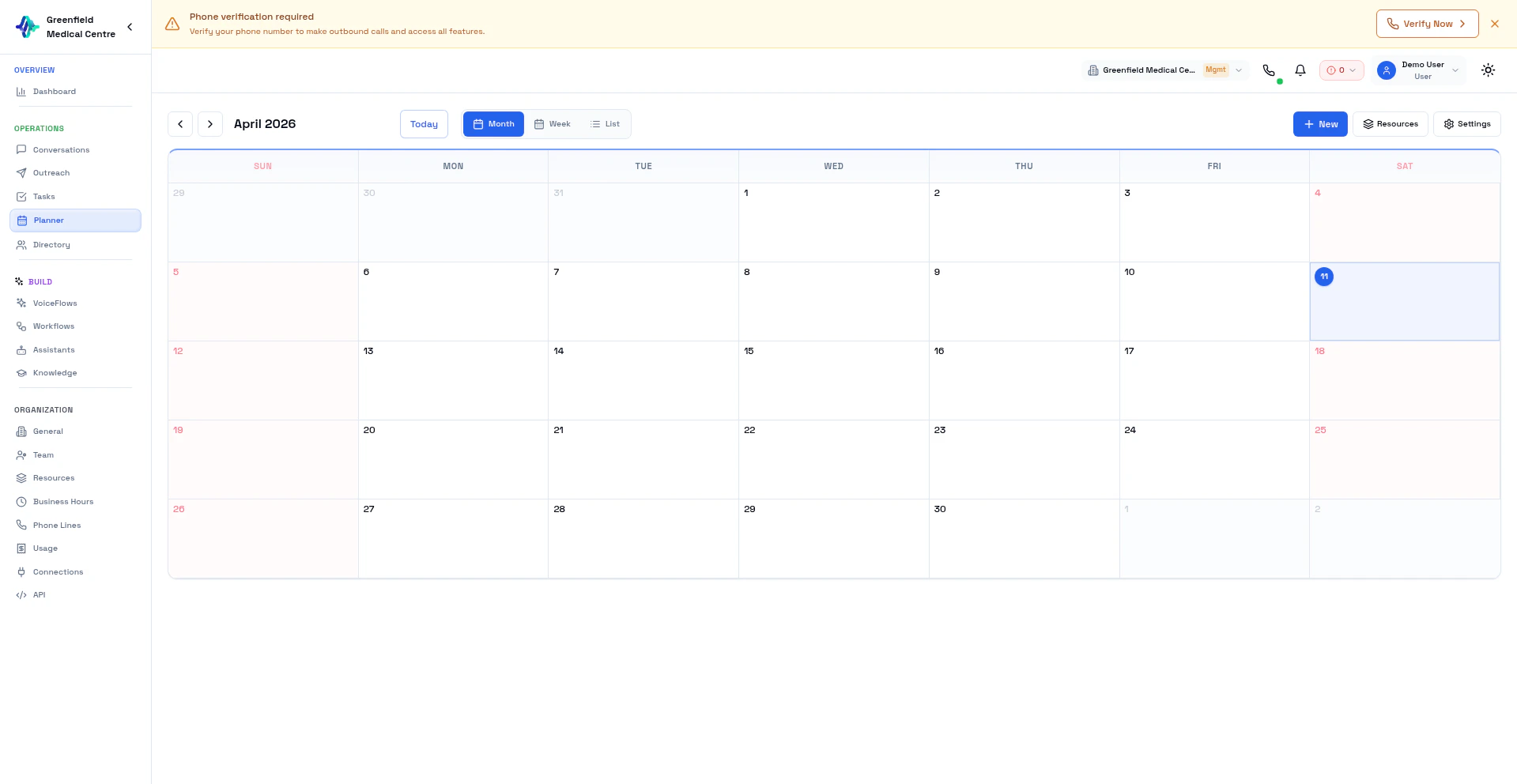 The Planner is EolasFlow's built-in appointment scheduling system. Your AI assistants can check availability, book appointments, and manage cancellations during live phone calls — no external calendar integrations required.
## How It Works
1. You configure **Resources** (people, rooms, or equipment) and **Business Hours**
2. You enable the **Appointment** tool on your assistant
3. During a call, the AI checks real-time availability and books appointments
4. Appointments appear in the Planner calendar view
## Planner Views
Navigate to **Planner** in the Workspace section to see your appointment calendar:
* **Month View** — Overview of all appointments across the month
* **Week View** — Detailed weekly schedule with time slots
* **List View** — Chronological list of upcoming appointments
Appointments are color-coded by resource for easy identification.
## Resources
Resources are the people, rooms, or equipment that can be booked through the Planner. When a caller asks to book an appointment, the AI checks which resources are available and assigns one automatically.
Navigate to **Resources** in the Organization section of the sidebar.
The Planner is EolasFlow's built-in appointment scheduling system. Your AI assistants can check availability, book appointments, and manage cancellations during live phone calls — no external calendar integrations required.
## How It Works
1. You configure **Resources** (people, rooms, or equipment) and **Business Hours**
2. You enable the **Appointment** tool on your assistant
3. During a call, the AI checks real-time availability and books appointments
4. Appointments appear in the Planner calendar view
## Planner Views
Navigate to **Planner** in the Workspace section to see your appointment calendar:
* **Month View** — Overview of all appointments across the month
* **Week View** — Detailed weekly schedule with time slots
* **List View** — Chronological list of upcoming appointments
Appointments are color-coded by resource for easy identification.
## Resources
Resources are the people, rooms, or equipment that can be booked through the Planner. When a caller asks to book an appointment, the AI checks which resources are available and assigns one automatically.
Navigate to **Resources** in the Organization section of the sidebar.
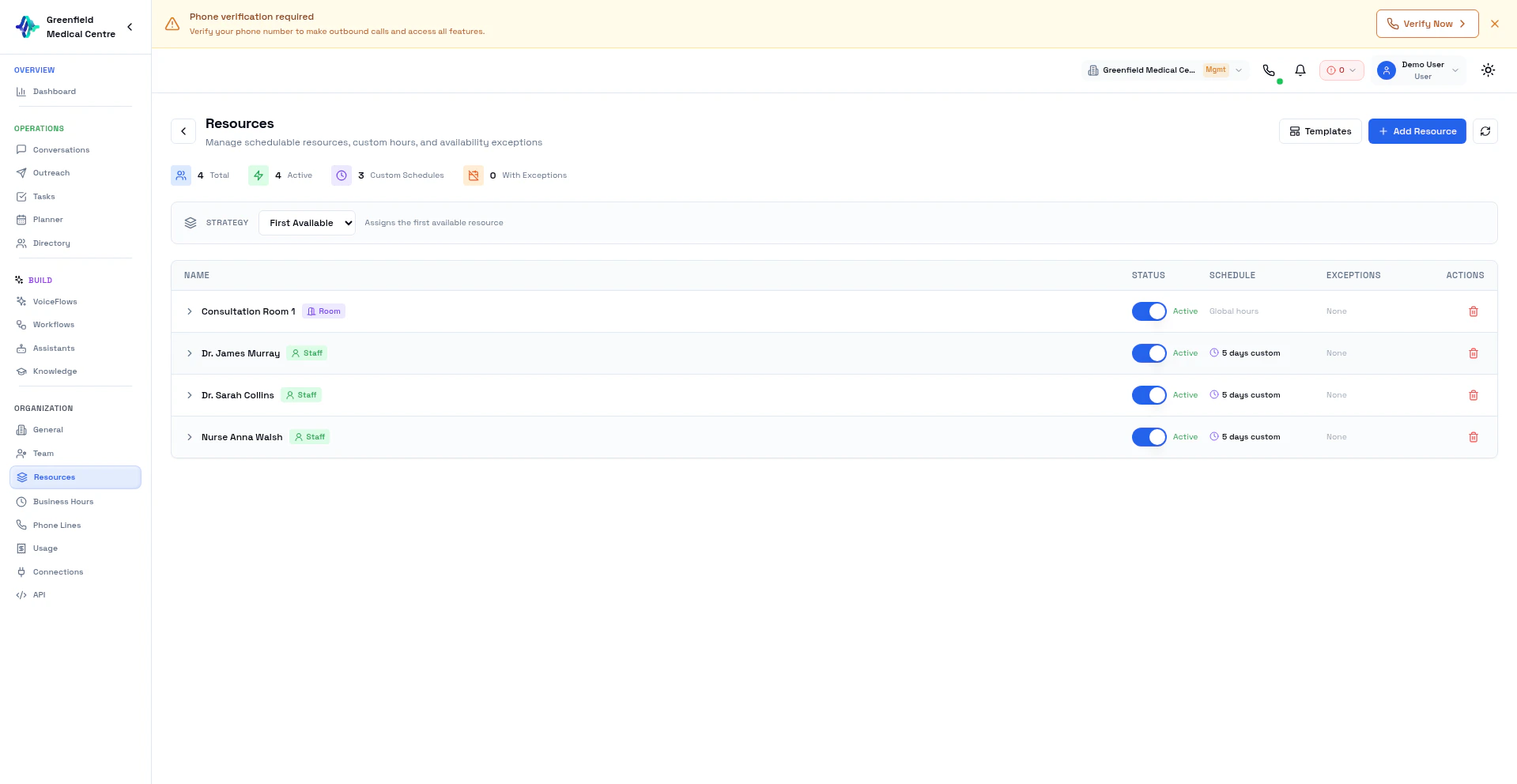 The Resources page shows:
* **Total resources** and how many are active
* **Custom Schedules** — resources with their own working hours (overriding global Business Hours)
* **Exceptions** — resources with date-specific overrides (e.g., vacation days)
* **Scheduling Strategy** dropdown — how the system assigns resources
### Resource Types
| Type | Examples |
| ------------- | --------------------------------------------------- |
| **Staff** | Dr. Sarah Collins, Nurse Anna Walsh, Sales Rep John |
| **Room** | Consultation Room 1, Meeting Room A |
| **Equipment** | Ultrasound Machine, Demo Station |
| **Agent** | Transfer targets for call routing |
### Creating a Resource
Navigate to **Resources** in the Organization section.
Click **Add Resource** and enter:
* **Name** — A clear identifier (e.g., "Dr. Smith", "Consultation Room 1")
* **Type** — Staff, Room, Equipment, or Agent
* **Attributes** — Key-value pairs for intelligent matching (e.g., `specialty: dermatology`, `capacity: 4`)
Override the global Business Hours for this resource. For example, Dr. Smith works Monday–Friday but Nurse Walsh works Tuesday–Saturday.
Add date-specific overrides — vacation days, training days, or extended hours for a specific date.
Save the resource. It's immediately available for AI booking.
Use **attributes** to help the AI match caller requests to the right resource. If a caller asks for a "dermatology appointment," the AI matches to a resource with `specialty: dermatology`.
### Scheduling Strategies
The strategy determines how the system picks a resource when multiple have open slots. Select from the dropdown at the top of the Resources page.
| Strategy | How It Works | Best For |
| ------------------- | ------------------------------------------------------ | ----------------------------------------- |
| **First Available** | Assigns the first resource with an open slot | Simple setups, single-resource businesses |
| **Smallest Fit** | Finds the resource with the tightest available window | Maximizing utilization, reducing gaps |
| **Skill Match** | Matches based on resource attributes (e.g., specialty) | Clinics, salons, specialized services |
| **Round Robin** | Distributes evenly across resources | Fair distribution, sales teams |
### Industry Templates
Click **Templates** to quickly set up resources for common industries:
| Template | Creates |
| -------------- | ------------------------------------ |
| **Restaurant** | Tables with capacity attributes |
| **Sales Team** | Sales reps with territory attributes |
| **Salon** | Stylists with service specialties |
| **Clinic** | Doctors with specialty attributes |
Templates create a starting set of resources — you can edit, add, or remove them after applying.
## Business Hours
Business Hours define when your AI can book appointments. Navigate to **Business Hours** in the Organization section of the sidebar to configure your schedule.
The Resources page shows:
* **Total resources** and how many are active
* **Custom Schedules** — resources with their own working hours (overriding global Business Hours)
* **Exceptions** — resources with date-specific overrides (e.g., vacation days)
* **Scheduling Strategy** dropdown — how the system assigns resources
### Resource Types
| Type | Examples |
| ------------- | --------------------------------------------------- |
| **Staff** | Dr. Sarah Collins, Nurse Anna Walsh, Sales Rep John |
| **Room** | Consultation Room 1, Meeting Room A |
| **Equipment** | Ultrasound Machine, Demo Station |
| **Agent** | Transfer targets for call routing |
### Creating a Resource
Navigate to **Resources** in the Organization section.
Click **Add Resource** and enter:
* **Name** — A clear identifier (e.g., "Dr. Smith", "Consultation Room 1")
* **Type** — Staff, Room, Equipment, or Agent
* **Attributes** — Key-value pairs for intelligent matching (e.g., `specialty: dermatology`, `capacity: 4`)
Override the global Business Hours for this resource. For example, Dr. Smith works Monday–Friday but Nurse Walsh works Tuesday–Saturday.
Add date-specific overrides — vacation days, training days, or extended hours for a specific date.
Save the resource. It's immediately available for AI booking.
Use **attributes** to help the AI match caller requests to the right resource. If a caller asks for a "dermatology appointment," the AI matches to a resource with `specialty: dermatology`.
### Scheduling Strategies
The strategy determines how the system picks a resource when multiple have open slots. Select from the dropdown at the top of the Resources page.
| Strategy | How It Works | Best For |
| ------------------- | ------------------------------------------------------ | ----------------------------------------- |
| **First Available** | Assigns the first resource with an open slot | Simple setups, single-resource businesses |
| **Smallest Fit** | Finds the resource with the tightest available window | Maximizing utilization, reducing gaps |
| **Skill Match** | Matches based on resource attributes (e.g., specialty) | Clinics, salons, specialized services |
| **Round Robin** | Distributes evenly across resources | Fair distribution, sales teams |
### Industry Templates
Click **Templates** to quickly set up resources for common industries:
| Template | Creates |
| -------------- | ------------------------------------ |
| **Restaurant** | Tables with capacity attributes |
| **Sales Team** | Sales reps with territory attributes |
| **Salon** | Stylists with service specialties |
| **Clinic** | Doctors with specialty attributes |
Templates create a starting set of resources — you can edit, add, or remove them after applying.
## Business Hours
Business Hours define when your AI can book appointments. Navigate to **Business Hours** in the Organization section of the sidebar to configure your schedule.
 ### Working Hours
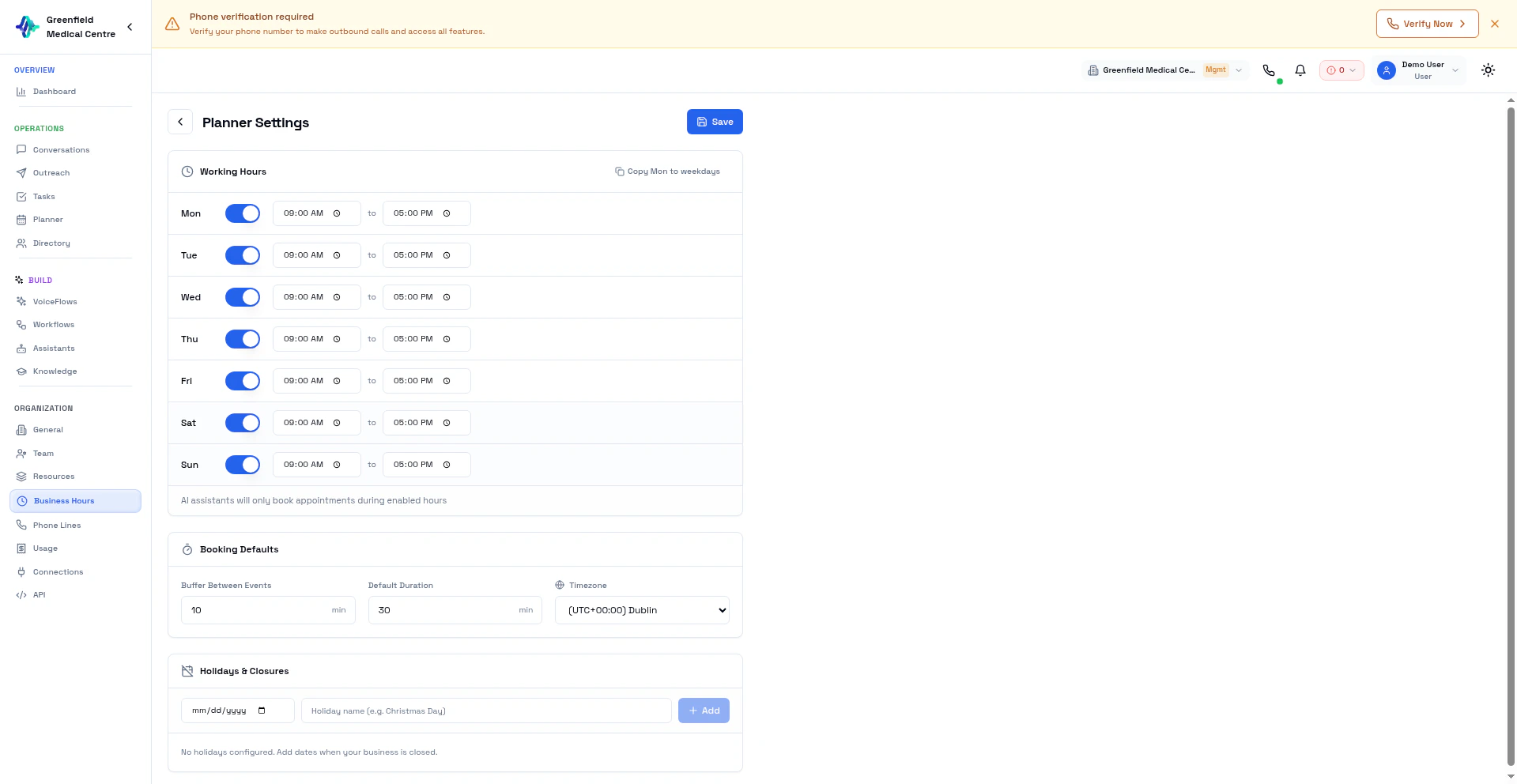
Set which days your business is open and the operating times for each day:
* Each day (Mon–Sun) has an **on/off toggle** and a **time range** (e.g., 09:00 AM – 5:00 PM)
* Use **Copy Mon to weekdays** to quickly apply Monday's hours to Tuesday through Friday
* Disabled days are unavailable for booking — the AI won't offer those slots
AI assistants will only book appointments during enabled hours. If a caller asks for a Saturday appointment and Saturday is toggled off, the AI will offer the next available day.
### Booking Defaults
| Setting | Description | Example |
| ------------------------- | ---------------------------------------------- | ------- |
| **Buffer Between Events** | Minimum gap between consecutive appointments | 10 min |
| **Default Duration** | Standard appointment length when not specified | 30 min |
### Timezone
Select your business timezone from the dropdown. All appointment times displayed to callers and in the Planner calendar use this timezone. Supports 25+ timezones worldwide.
### Holidays & Closures
Add dates when your business is closed and the AI should not book appointments:
* Select a date from the date picker
* Enter a name (e.g., "Christmas Day", "Staff Training Day")
* Add as many holidays as needed — they override working hours for that specific date
## AI Booking During Calls
When the **Appointment** tool is enabled on an assistant, it can:
| Action | Description |
| ------------------------ | ------------------------------------------------------------------- |
| **Check Availability** | Query open slots for a date or date range |
| **Book** | Reserve a slot with customer information |
| **View My Appointments** | Look up a caller's existing bookings (matched by phone number) |
| **Cancel** | Cancel an existing appointment (verified by phone number ownership) |
The assistant automatically uses `request_attributes` to match the right resource. For example, a customer asking for a dermatology appointment gets matched to a resource with `specialty: dermatology`.
### Example Conversation
```
Customer: "I'd like to book an appointment with a dermatologist for next Tuesday."
AI: "Let me check availability... I have openings at 10:00 AM and 2:30 PM
next Tuesday with Dr. Smith. Which works better for you?"
Customer: "2:30 PM please."
AI: "You're all set. I've booked you with Dr. Smith at 2:30 PM on Tuesday.
You'll receive a confirmation. Is there anything else I can help with?"
```
## Overlap Protection
The system prevents double-booking with database-level constraints. Each resource can only have one confirmed appointment per time slot.
## Best Practices
**Set Buffer Time:** Add 10-15 minutes between appointments for transitions.
**Use Attributes:** Add attributes to resources so the AI can match customer requests intelligently.
**Test Booking Flow:** Make test calls to verify the AI books appointments correctly before going live.
## Next Steps
Enable the Appointment tool on your assistant
Link the Planner to your VoiceFlows
### Working Hours
Set which days your business is open and the operating times for each day:
* Each day (Mon–Sun) has an **on/off toggle** and a **time range** (e.g., 09:00 AM – 5:00 PM)
* Use **Copy Mon to weekdays** to quickly apply Monday's hours to Tuesday through Friday
* Disabled days are unavailable for booking — the AI won't offer those slots
AI assistants will only book appointments during enabled hours. If a caller asks for a Saturday appointment and Saturday is toggled off, the AI will offer the next available day.
### Booking Defaults
| Setting | Description | Example |
| ------------------------- | ---------------------------------------------- | ------- |
| **Buffer Between Events** | Minimum gap between consecutive appointments | 10 min |
| **Default Duration** | Standard appointment length when not specified | 30 min |
### Timezone
Select your business timezone from the dropdown. All appointment times displayed to callers and in the Planner calendar use this timezone. Supports 25+ timezones worldwide.
### Holidays & Closures
Add dates when your business is closed and the AI should not book appointments:
* Select a date from the date picker
* Enter a name (e.g., "Christmas Day", "Staff Training Day")
* Add as many holidays as needed — they override working hours for that specific date
## AI Booking During Calls
When the **Appointment** tool is enabled on an assistant, it can:
| Action | Description |
| ------------------------ | ------------------------------------------------------------------- |
| **Check Availability** | Query open slots for a date or date range |
| **Book** | Reserve a slot with customer information |
| **View My Appointments** | Look up a caller's existing bookings (matched by phone number) |
| **Cancel** | Cancel an existing appointment (verified by phone number ownership) |
The assistant automatically uses `request_attributes` to match the right resource. For example, a customer asking for a dermatology appointment gets matched to a resource with `specialty: dermatology`.
### Example Conversation
```
Customer: "I'd like to book an appointment with a dermatologist for next Tuesday."
AI: "Let me check availability... I have openings at 10:00 AM and 2:30 PM
next Tuesday with Dr. Smith. Which works better for you?"
Customer: "2:30 PM please."
AI: "You're all set. I've booked you with Dr. Smith at 2:30 PM on Tuesday.
You'll receive a confirmation. Is there anything else I can help with?"
```
## Overlap Protection
The system prevents double-booking with database-level constraints. Each resource can only have one confirmed appointment per time slot.
## Best Practices
**Set Buffer Time:** Add 10-15 minutes between appointments for transitions.
**Use Attributes:** Add attributes to resources so the AI can match customer requests intelligently.
**Test Booking Flow:** Make test calls to verify the AI books appointments correctly before going live.
## Next Steps
Enable the Appointment tool on your assistant
Link the Planner to your VoiceFlows