> ## Documentation Index
> Fetch the complete documentation index at: https://docs.eolasflow.ai/llms.txt
> Use this file to discover all available pages before exploring further.
# Tasks
> Track AI-generated action items from calls and manage follow-ups
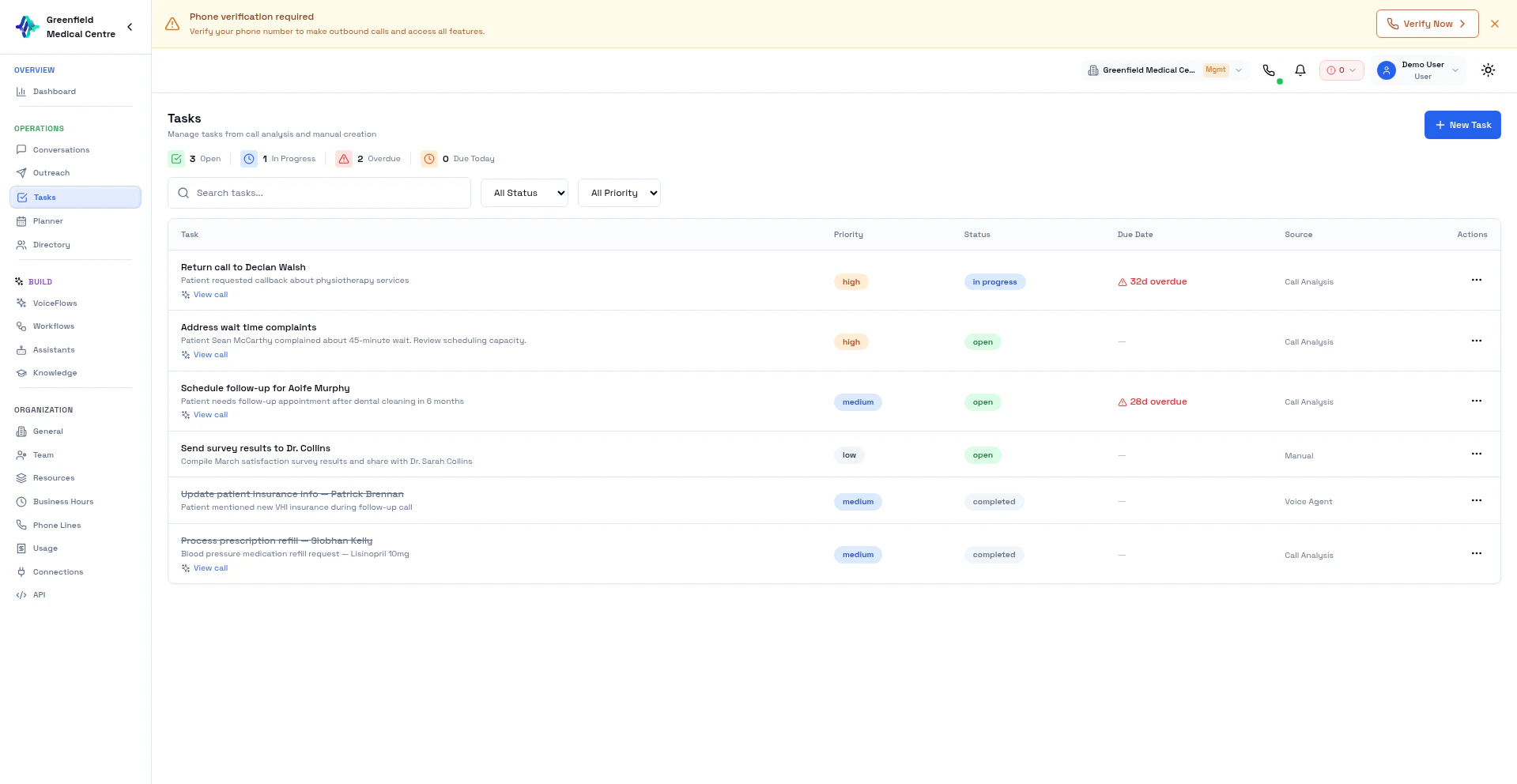 Tasks are action items automatically generated by AI after each call. When your assistant identifies follow-ups, commitments, or required actions during a conversation, they become tasks you can track and manage.
## How Tasks Are Created
After every completed call, the AI analysis pipeline reviews the conversation and extracts actionable items. For example:
* "Send pricing document to customer"
* "Schedule follow-up call for next Tuesday"
* "Escalate billing issue to accounts team"
* "Email contract to [john@example.com](mailto:john@example.com)"
These appear automatically in the Tasks section, linked to the original conversation.
## Task List
Navigate to **Tasks** in the Workspace section to see all tasks across your workflows. Each task shows:
* **Title** — What needs to be done
* **Source** — Which conversation generated the task
* **Contact** — Associated contact from the Directory
* **Status** — Open, In Progress, or Completed
* **Priority** — Derived from the conversation context
* **Created** — When the task was generated
## Managing Tasks
### Update Status
Click on a task to update its status:
* **Open** — Not yet started
* **In Progress** — Being worked on
* **Completed** — Done
### View Source Conversation
Each task links back to the conversation that generated it. Click the conversation link to review the full context — recording, transcript, and AI analysis.
## Best Practices
**Review Daily:** Check your task list daily to stay on top of AI-generated follow-ups.
**Use with Webhooks:** Configure webhooks on your workflows to send tasks to external project management tools automatically.
## Next Steps
Review calls that generated tasks
Configure analytics to improve task extraction
Tasks are action items automatically generated by AI after each call. When your assistant identifies follow-ups, commitments, or required actions during a conversation, they become tasks you can track and manage.
## How Tasks Are Created
After every completed call, the AI analysis pipeline reviews the conversation and extracts actionable items. For example:
* "Send pricing document to customer"
* "Schedule follow-up call for next Tuesday"
* "Escalate billing issue to accounts team"
* "Email contract to [john@example.com](mailto:john@example.com)"
These appear automatically in the Tasks section, linked to the original conversation.
## Task List
Navigate to **Tasks** in the Workspace section to see all tasks across your workflows. Each task shows:
* **Title** — What needs to be done
* **Source** — Which conversation generated the task
* **Contact** — Associated contact from the Directory
* **Status** — Open, In Progress, or Completed
* **Priority** — Derived from the conversation context
* **Created** — When the task was generated
## Managing Tasks
### Update Status
Click on a task to update its status:
* **Open** — Not yet started
* **In Progress** — Being worked on
* **Completed** — Done
### View Source Conversation
Each task links back to the conversation that generated it. Click the conversation link to review the full context — recording, transcript, and AI analysis.
## Best Practices
**Review Daily:** Check your task list daily to stay on top of AI-generated follow-ups.
**Use with Webhooks:** Configure webhooks on your workflows to send tasks to external project management tools automatically.
## Next Steps
Review calls that generated tasks
Configure analytics to improve task extraction