> ## Documentation Index
> Fetch the complete documentation index at: https://docs.eolasflow.ai/llms.txt
> Use this file to discover all available pages before exploring further.
# Workflows
> Automate business processes with visual workflow automation powered by Activepieces
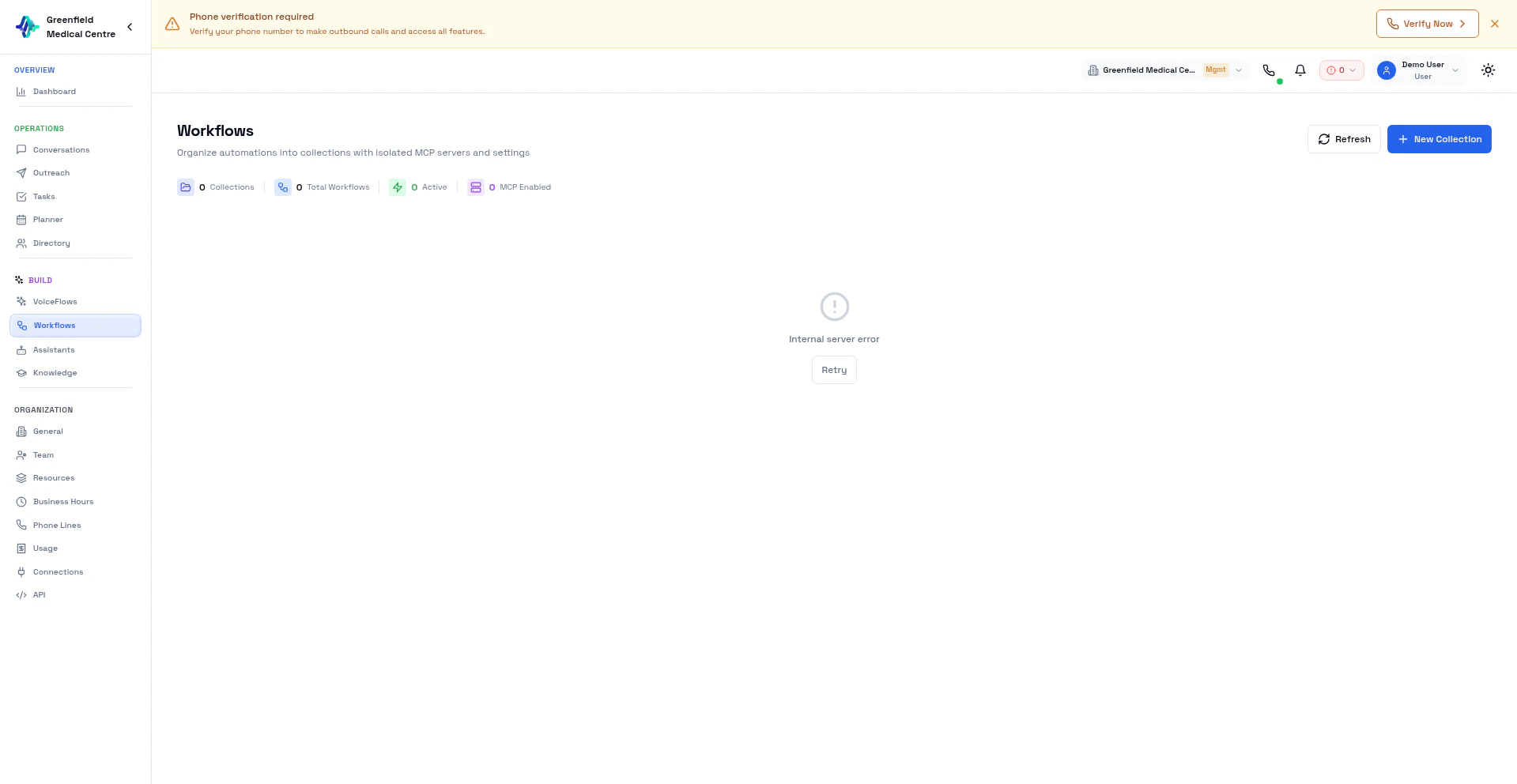 Workflows let you automate business processes triggered by call events, schedules, or external triggers. Powered by Activepieces, the visual workflow builder connects EolasFlow to CRMs, email, Slack, and hundreds of other apps — no coding required.
## VoiceFlows vs Workflows
Before diving in, it is important to understand the difference between VoiceFlows and Workflows — they are two distinct features.
| | VoiceFlows | Workflows |
| ---------------- | ---------------------------- | --------------------------------------- |
| **Purpose** | AI calling configuration | Business process automation |
| **What it does** | Handles phone conversations | Triggers actions based on events |
| **Components** | AI assistant + phone line | Triggers + actions + connections |
| **Location** | Build → VoiceFlows | Build → Workflows |
| **Example** | Sales call with AI assistant | Send Slack message after call completes |
VoiceFlows define **how calls happen**. Workflows automate **what happens before, during, or after calls**.
## Workflow Collections
Workflows are organized into collections. Each collection is org-scoped and can be linked to a VoiceFlow. When linked, all published workflows in the collection trigger on events from that VoiceFlow.
This structure lets you:
* Group related automations together
* Reuse a collection across multiple VoiceFlows
* Enable or disable an entire automation suite by publishing or unpublishing the collection
## Creating a Workflow
Go to **Build → Workflows** in the sidebar. You will see your existing collections listed here.
Select an existing collection, or click **New Collection** to create one. Give it a descriptive name that reflects the VoiceFlow or process it supports.
Inside the collection, click **New Workflow**. This opens the Activepieces visual builder in a new panel.
Select what starts the workflow — a call event, a schedule, a webhook, or an agent event. See the Trigger Types table below for details.
Add one or more actions — update a CRM record, send a Slack message, append a row to a spreadsheet, and so on. Connect each step visually in the builder.
Use the **Test** button in the builder to send a sample payload through the workflow and verify each action behaves as expected.
Click **Publish** to make the workflow live. Only published workflows respond to real events.
## Trigger Types
| Trigger | Description | Use Case |
| ------------------ | --------------------------------------------------------------------------------- | ---------------------------------------- |
| **Call Completed** | Fires when a call ends. Includes transcript, recording URL, summary, and outcome. | Post-call CRM update, follow-up email |
| **Call Started** | Fires when a call begins | Real-time notifications, live dashboards |
| **Agent Event** | Custom events emitted by the AI during a call | Mid-call actions, escalation routing |
| **Schedule** | Time-based trigger: hourly, daily, weekly, or custom cron | Regular reports, data syncs |
| **Webhook** | Triggered by an incoming HTTP request from an external system | External system integration |
The **Call Completed** trigger is the most commonly used. It carries the richest payload — transcript, summary, talk metrics, and call outcome — making it ideal for post-call automations.
## Linking Workflows to VoiceFlows
To connect a workflow collection to a VoiceFlow so it fires on call events:
Go to **Build → VoiceFlows** and open the VoiceFlow you want to automate.
Inside the VoiceFlow settings, navigate to the **Post-Call** tab.
Use the dropdown to select the workflow collection you want to link. Only collections within your organization are shown.
Save the VoiceFlow. All published workflows in the selected collection will now trigger automatically on events from this VoiceFlow.
You can link one collection to multiple VoiceFlows. This is useful when the same post-call automations (such as CRM updates and Slack notifications) should apply across several calling use cases.
## Connection Management
Each collection maintains its own set of connections to external services. To configure connections:
1. Open the collection from **Build → Workflows**
2. Click **Connections** in the collection panel
3. Add or manage connections to external services
Supported services include Gmail, Slack, HubSpot, Google Sheets, Salesforce, Pipedrive, Airtable, Notion, and hundreds more via Activepieces connectors.
Connections are scoped to the collection, not the individual workflow. All workflows within a collection share the same connections.
## Common Automation Examples
**Trigger:** Call Completed
**Actions:**
1. Look up the contact in HubSpot by phone number
2. Update the contact record with the call outcome and AI-generated summary
3. Create a follow-up task if the outcome is "Interested"
This keeps your CRM current without any manual data entry after every call.
**Trigger:** Call Completed
**Actions:**
1. Format a message with the caller name, call duration, and outcome
2. Send the message to your `#sales` or `#support` Slack channel
Your team stays informed about every call in real time without checking the dashboard.
**Trigger:** Call Completed
**Actions:**
1. Check if the call outcome equals "Interested"
2. If yes: send a personalized follow-up email via Gmail using the caller's name and summary
3. If no: skip (no action)
Automate timely outreach to warm leads immediately after a call ends.
**Trigger:** Schedule (daily at 9:00 AM)
**Actions:**
1. Query call stats for the previous day (total calls, outcomes, average duration)
2. Format a summary message
3. Post to Slack or send via email to the team
Start every morning with a quick snapshot of yesterday's call activity.
**Trigger:** Call Completed
**Actions:**
1. Extract caller name, phone number, duration, outcome, and summary from the trigger payload
2. Append a new row to a designated Google Sheet
Build a running log of all calls for reporting, auditing, or manual review.
## Best Practices
**Test before going live.** Use the Activepieces Test button with sample payloads before connecting to production CRMs or email accounts. Avoid sending test data to real contacts.
**Use Call Completed for most automations.** It fires after the call transcript and analysis are ready, giving you the full data set — outcome, summary, talk metrics, and recording URL.
**One workflow per automation.** Keep each workflow focused on a single task. A workflow that updates the CRM, sends a Slack message, and emails the customer is harder to debug and maintain than three separate workflows.
**Monitor execution history.** In the Activepieces builder, check the run history for each workflow regularly. Failed runs appear there with error details so you can fix issues quickly.
If a workflow fails, it does not retry automatically by default. Check the execution history in the builder and re-run manually if needed, or configure retry logic within the workflow.
## Next Steps
Configure AI calling with VoiceFlows
Send real-time call events to external systems
Explore advanced automation patterns
Workflows let you automate business processes triggered by call events, schedules, or external triggers. Powered by Activepieces, the visual workflow builder connects EolasFlow to CRMs, email, Slack, and hundreds of other apps — no coding required.
## VoiceFlows vs Workflows
Before diving in, it is important to understand the difference between VoiceFlows and Workflows — they are two distinct features.
| | VoiceFlows | Workflows |
| ---------------- | ---------------------------- | --------------------------------------- |
| **Purpose** | AI calling configuration | Business process automation |
| **What it does** | Handles phone conversations | Triggers actions based on events |
| **Components** | AI assistant + phone line | Triggers + actions + connections |
| **Location** | Build → VoiceFlows | Build → Workflows |
| **Example** | Sales call with AI assistant | Send Slack message after call completes |
VoiceFlows define **how calls happen**. Workflows automate **what happens before, during, or after calls**.
## Workflow Collections
Workflows are organized into collections. Each collection is org-scoped and can be linked to a VoiceFlow. When linked, all published workflows in the collection trigger on events from that VoiceFlow.
This structure lets you:
* Group related automations together
* Reuse a collection across multiple VoiceFlows
* Enable or disable an entire automation suite by publishing or unpublishing the collection
## Creating a Workflow
Go to **Build → Workflows** in the sidebar. You will see your existing collections listed here.
Select an existing collection, or click **New Collection** to create one. Give it a descriptive name that reflects the VoiceFlow or process it supports.
Inside the collection, click **New Workflow**. This opens the Activepieces visual builder in a new panel.
Select what starts the workflow — a call event, a schedule, a webhook, or an agent event. See the Trigger Types table below for details.
Add one or more actions — update a CRM record, send a Slack message, append a row to a spreadsheet, and so on. Connect each step visually in the builder.
Use the **Test** button in the builder to send a sample payload through the workflow and verify each action behaves as expected.
Click **Publish** to make the workflow live. Only published workflows respond to real events.
## Trigger Types
| Trigger | Description | Use Case |
| ------------------ | --------------------------------------------------------------------------------- | ---------------------------------------- |
| **Call Completed** | Fires when a call ends. Includes transcript, recording URL, summary, and outcome. | Post-call CRM update, follow-up email |
| **Call Started** | Fires when a call begins | Real-time notifications, live dashboards |
| **Agent Event** | Custom events emitted by the AI during a call | Mid-call actions, escalation routing |
| **Schedule** | Time-based trigger: hourly, daily, weekly, or custom cron | Regular reports, data syncs |
| **Webhook** | Triggered by an incoming HTTP request from an external system | External system integration |
The **Call Completed** trigger is the most commonly used. It carries the richest payload — transcript, summary, talk metrics, and call outcome — making it ideal for post-call automations.
## Linking Workflows to VoiceFlows
To connect a workflow collection to a VoiceFlow so it fires on call events:
Go to **Build → VoiceFlows** and open the VoiceFlow you want to automate.
Inside the VoiceFlow settings, navigate to the **Post-Call** tab.
Use the dropdown to select the workflow collection you want to link. Only collections within your organization are shown.
Save the VoiceFlow. All published workflows in the selected collection will now trigger automatically on events from this VoiceFlow.
You can link one collection to multiple VoiceFlows. This is useful when the same post-call automations (such as CRM updates and Slack notifications) should apply across several calling use cases.
## Connection Management
Each collection maintains its own set of connections to external services. To configure connections:
1. Open the collection from **Build → Workflows**
2. Click **Connections** in the collection panel
3. Add or manage connections to external services
Supported services include Gmail, Slack, HubSpot, Google Sheets, Salesforce, Pipedrive, Airtable, Notion, and hundreds more via Activepieces connectors.
Connections are scoped to the collection, not the individual workflow. All workflows within a collection share the same connections.
## Common Automation Examples
**Trigger:** Call Completed
**Actions:**
1. Look up the contact in HubSpot by phone number
2. Update the contact record with the call outcome and AI-generated summary
3. Create a follow-up task if the outcome is "Interested"
This keeps your CRM current without any manual data entry after every call.
**Trigger:** Call Completed
**Actions:**
1. Format a message with the caller name, call duration, and outcome
2. Send the message to your `#sales` or `#support` Slack channel
Your team stays informed about every call in real time without checking the dashboard.
**Trigger:** Call Completed
**Actions:**
1. Check if the call outcome equals "Interested"
2. If yes: send a personalized follow-up email via Gmail using the caller's name and summary
3. If no: skip (no action)
Automate timely outreach to warm leads immediately after a call ends.
**Trigger:** Schedule (daily at 9:00 AM)
**Actions:**
1. Query call stats for the previous day (total calls, outcomes, average duration)
2. Format a summary message
3. Post to Slack or send via email to the team
Start every morning with a quick snapshot of yesterday's call activity.
**Trigger:** Call Completed
**Actions:**
1. Extract caller name, phone number, duration, outcome, and summary from the trigger payload
2. Append a new row to a designated Google Sheet
Build a running log of all calls for reporting, auditing, or manual review.
## Best Practices
**Test before going live.** Use the Activepieces Test button with sample payloads before connecting to production CRMs or email accounts. Avoid sending test data to real contacts.
**Use Call Completed for most automations.** It fires after the call transcript and analysis are ready, giving you the full data set — outcome, summary, talk metrics, and recording URL.
**One workflow per automation.** Keep each workflow focused on a single task. A workflow that updates the CRM, sends a Slack message, and emails the customer is harder to debug and maintain than three separate workflows.
**Monitor execution history.** In the Activepieces builder, check the run history for each workflow regularly. Failed runs appear there with error details so you can fix issues quickly.
If a workflow fails, it does not retry automatically by default. Check the execution history in the builder and re-run manually if needed, or configure retry logic within the workflow.
## Next Steps
Configure AI calling with VoiceFlows
Send real-time call events to external systems
Explore advanced automation patterns