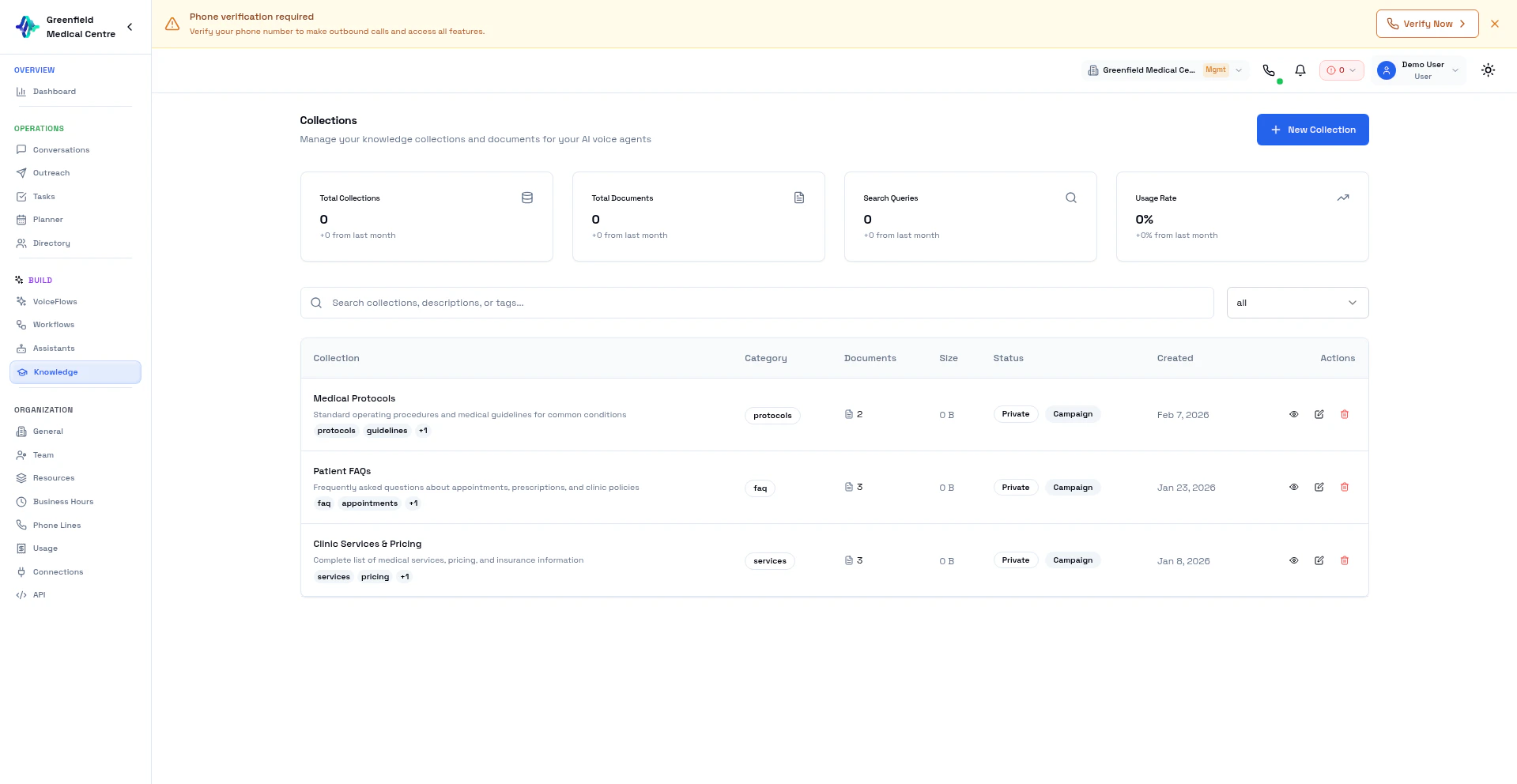
How It Works
- You create Collections to organize your documents
- You upload documents to collections
- Documents are automatically processed and indexed with vector embeddings
- You link collections to VoiceFlows
- During calls, assistants search the knowledge base and speak the answers
Knowledge retrieval uses semantic search — the AI finds relevant information based on meaning, not just keywords.
Creating a Collection
1
Navigate to Knowledge
Go to Knowledge in the Team section and click New Collection.
2
Name Your Collection
Give it a descriptive name (e.g., “Product FAQs”, “Pricing Information”).
3
Add Description
Describe what the collection contains.
4
Configure Settings
- Enable for VoiceFlows: Allow assistants to use this collection
- Public/Private: Control visibility
5
Save
Click Create to save.
Collection Categories
Adding Content to a Collection
Open a collection to see its documents and add new content. You can add content in two ways: upload files or crawl a website.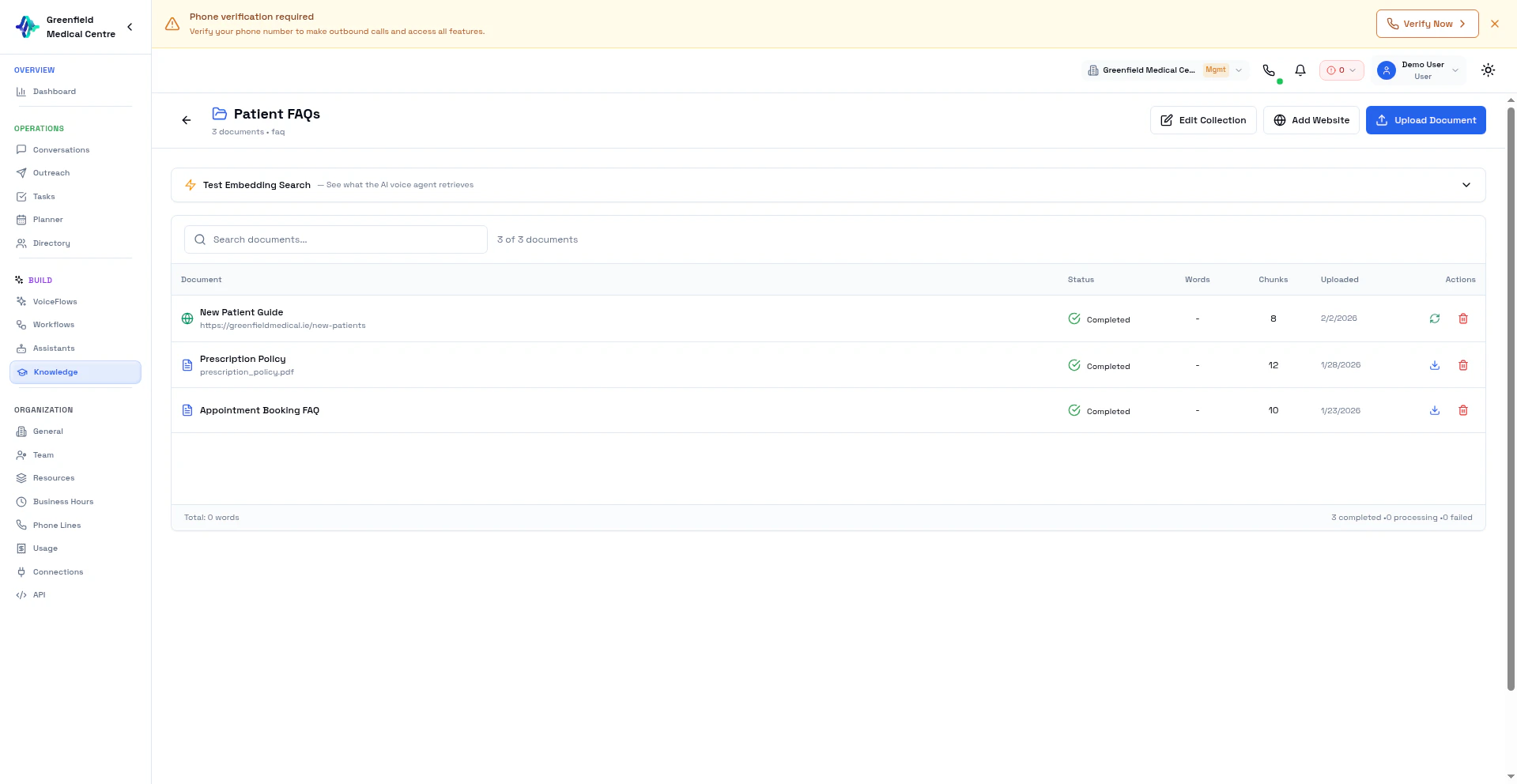
Upload Documents
1
Open a Collection
Click on a collection to view its contents.
2
Click Upload Document
Click Upload Document in the collection toolbar.
3
Select Files
Choose one or more files from your computer.
4
Wait for Processing
Documents are automatically chunked, embedded, and indexed. Status changes from Pending to Processing to Completed.
Supported File Formats
Add a Website
Crawl any website and add its content to your knowledge base. The AI automatically scrapes pages, extracts text, and indexes it — so your assistant can answer questions based on your website content during live calls.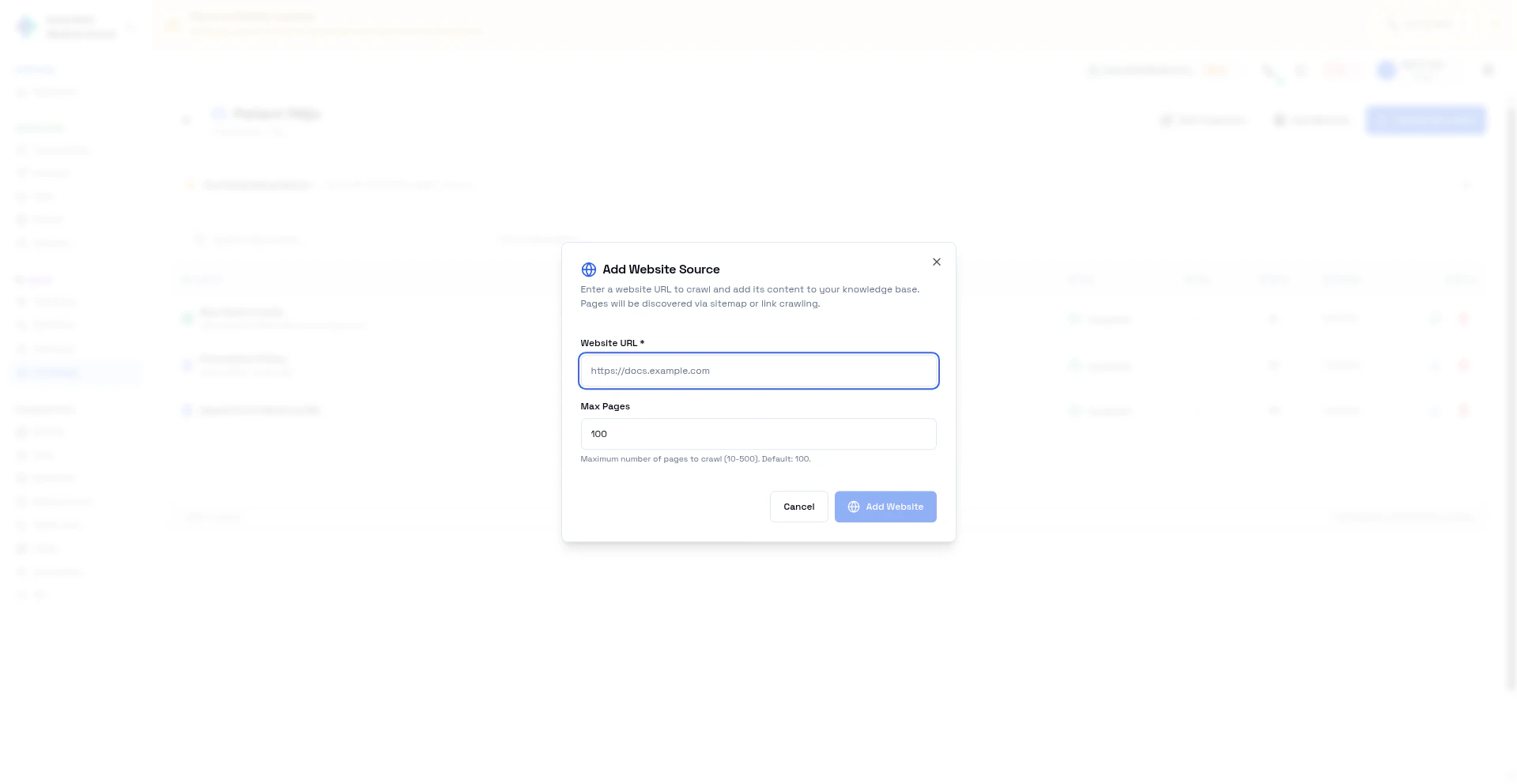
1
Open a Collection
Click on a collection to view its contents.
2
Click Add Website
Click Add Website in the collection toolbar.
3
Enter the URL
Enter the starting URL — for example, https://docs.example.com. The crawler follows links from this page to discover related pages.
4
Set Max Pages
Choose how many pages to crawl (10 to 500, default: 100). Start with a lower number for focused content, or increase for larger sites.
5
Start Crawl
Click to begin. The crawler visits each page, extracts text content, chunks it, and creates vector embeddings — just like uploaded documents.
Test Embedding Search
After adding content, click Test Embedding Search to verify the AI can find the right answers. Enter a question and see which document chunks the AI retrieves — this is exactly what happens during a live call.Processing Status
Using Knowledge in VoiceFlows
- Go to VoiceFlows and edit your VoiceFlow
- In Knowledge Base settings, select collections to include
- Save the VoiceFlow
Semantic Search
Your assistant uses meaning-based search:- Context-aware — Understands the context of questions
- Fuzzy matching — Handles synonyms and related terms
- If a customer asks “What’s the price?”, the AI finds content about “cost”, “pricing”, “fees”, or “rates”
Best Practices
Next Steps
Configure Assistants
Enable knowledge retrieval on your assistant
VoiceFlows
Link knowledge to VoiceFlows
MCP Integration
Connect live external data sources