VoiceFlows vs Outreach
Think of it this way: A VoiceFlow is your playbook. An Outreach is running that playbook with a specific roster of contacts.
Creating an Outreach
1
Navigate to Outreach
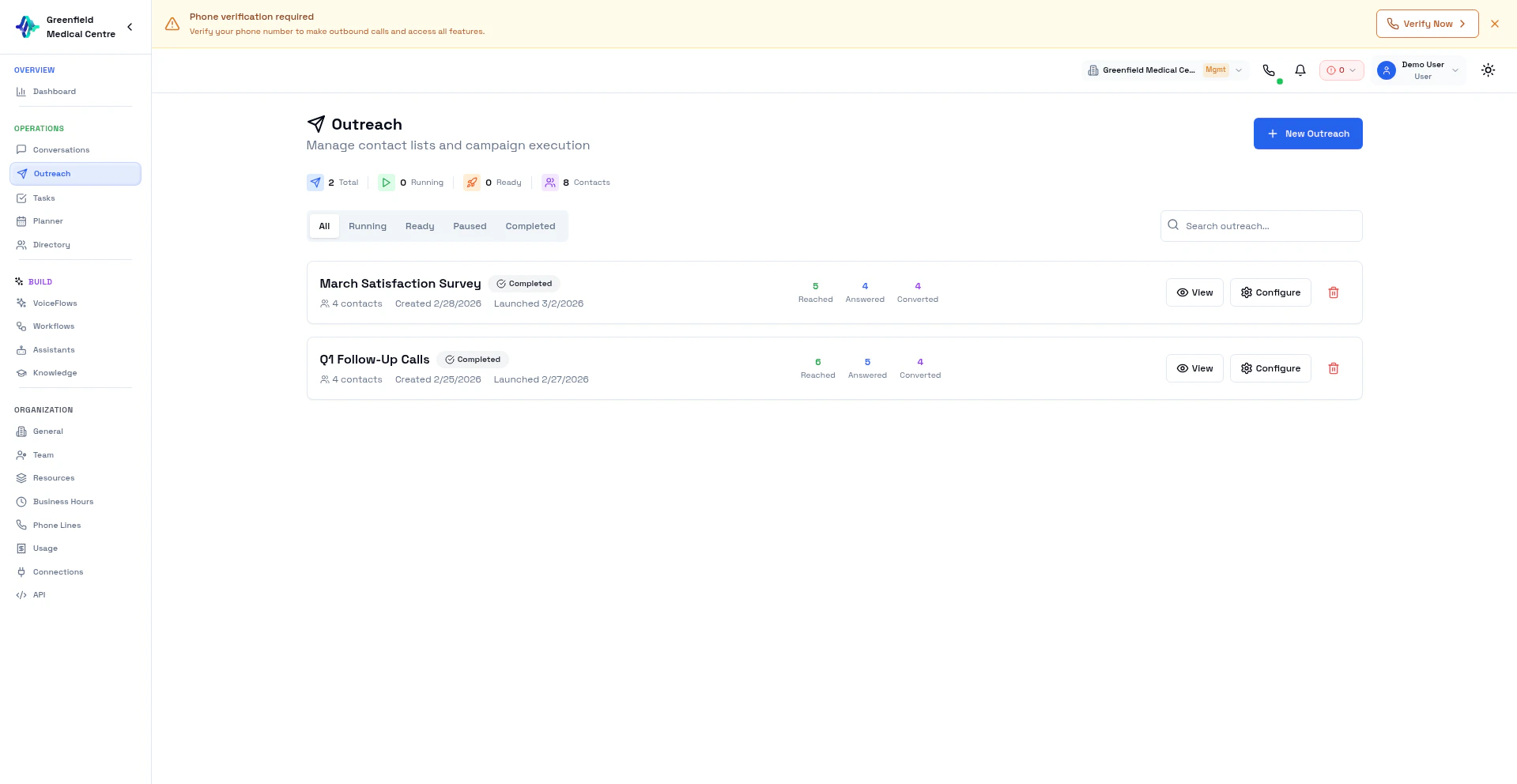
Go to Outreach in the Engage section and click New Outreach.
2
Name Your Outreach
Give it a descriptive name (e.g., “January Sales Push — West Region”).
3
Upload Contacts
Upload a CSV file with your contact list.
4
Select VoiceFlow
Choose which VoiceFlow to use for these calls.
5
Configure Schedule
Set when and how fast to make calls.
6
Launch
Click Launch when ready to start calling.
Schedule Options
Pacing Options
You can also set Max Concurrent Calls to limit simultaneous calls.
Outreach Statuses
Managing Outreach
- Launch — Start calling on a “Ready” outreach
- Pause — Temporarily stop calls (to review results or adjust settings)
- Resume — Continue where you left off
- Delete — Remove the outreach (only when Ready or Completed)
Progress Tracking
While an outreach runs, you can see:- Progress Bar — Percentage of contacts processed
- Total Contacts — Number in this outreach
- Reached — Contacts successfully called
- Answered — Calls that were picked up
- Converted — Calls achieving the VoiceFlow objective
Contact CSV Format
Best Practices
Viewing Results
After an outreach completes:- Go to Outreach and click on the completed outreach
- View summary statistics
- Click through to Conversations for detailed call records
Next Steps
VoiceFlows
Set up VoiceFlow templates for outreach
Conversations
Analyze call results from outreach
Directory
Prepare contact lists
Assistants
Customize your AI assistant