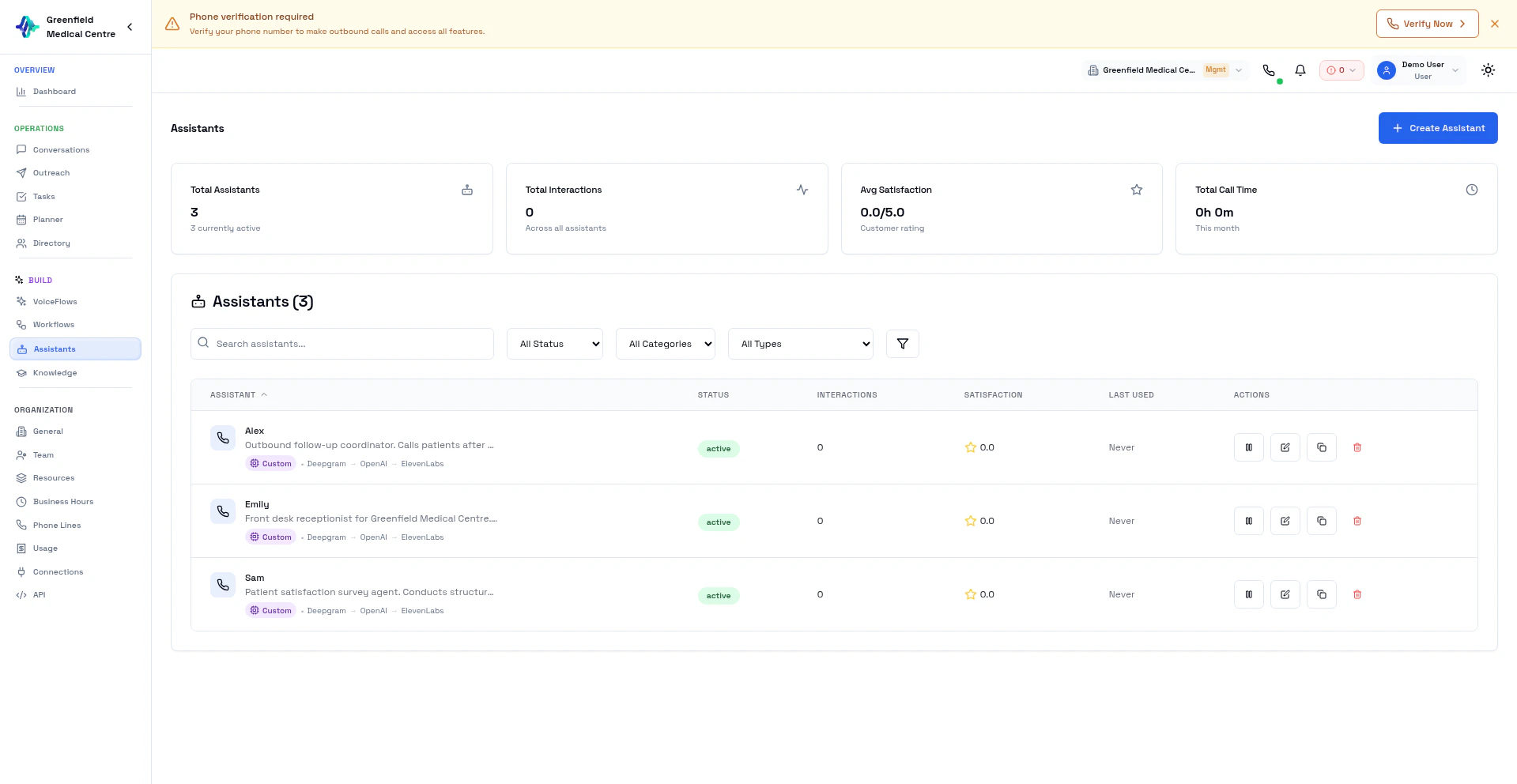
Assistant Types
EolasFlow supports three types of assistants:Voice
Handles phone calls with natural speech synthesis and real-time understanding
Chat
Text-based conversations for web chat or messaging
Worker
Background automation tasks without direct interaction
Creating a Voice Assistant
1
Navigate to Assistants
Go to Assistants in the Team section and click New Agent.
2
Select Type
Choose Voice for phone conversations.
3
Basic Information
- Name: Internal name (e.g., “Sales Assistant”)
- Description: What this assistant does
- Category: Sales, Support, Lead Qualifier, Appointment Scheduler, etc.
4
Choose AI Pipeline
Select the AI pipeline that powers your assistant’s intelligence.
5
Configure Voice & Personality
Set the voice, write a system prompt, greeting, and define objectives.
6
Enable Tools
Optionally enable built-in call tools (transfer, appointment booking, knowledge retrieval, hangup).
AI Pipeline Options
The pipeline determines how your assistant listens, thinks, and speaks. Choose based on your latency and quality requirements:OpenAI Realtime (~200-400ms)
End-to-end voice pipeline from OpenAI. Audio goes in, audio comes out — no separate STT/TTS step.- Best for: Lowest latency, natural conversations
- Voice: Built-in OpenAI voices
- LLM: GPT-4o (built-in)
Gemini Live (~300-500ms)
Google’s native audio model with built-in voice synthesis.- Best for: Multilingual support, Google ecosystem
- Voice: Built-in Gemini voices (Puck, Charon, Kore, etc.)
- LLM: Gemini (built-in)
Custom Pipeline (~750-1300ms)
Mix and match STT, LLM, and TTS providers independently. Maximum flexibility.- STT: Deepgram Nova (always)
- LLM: Choose from OpenAI, Groq, xAI Grok, or Google Gemini
- TTS: Choose from ElevenLabs, Cartesia, Google, Sarvam, NexVani, or Groq Orpheus
LLM Providers
TTS (Voice) Providers
Assistant Configuration
System Prompt
The system prompt defines your assistant’s personality, knowledge, and behavior rules. Write it as clear instructions:Greeting
The first thing your assistant says when the call connects. Keep it concise:Objectives
Define what the assistant should try to achieve:- Schedule a meeting
- Qualify a lead
- Collect information
- Resolve a support issue
- Transfer to a human agent
Call Tools
Enable built-in tools your assistant can use during calls:Managing Assistants
Clone an Assistant
To create a similar assistant quickly:- Open an existing assistant
- Click Clone
- Modify the settings
- Save as a new assistant
Test Your Assistant
Before using in a live VoiceFlow:- Go to Softphone
- Toggle AI Mode on
- Select your VoiceFlow and call yourself
- Review the conversation in Conversations
Knowledge Base Integration
Connect your assistant to documents for smarter answers:- Go to Knowledge and create a collection
- Upload relevant documents (PDF, Word, Markdown)
- In your VoiceFlow settings, link the knowledge collection
- Your assistant searches it automatically during calls
Best Practices
Start Simple
Start Simple
Begin with a clear, focused system prompt. Add complexity after testing.
Test Thoroughly
Test Thoroughly
Make multiple test calls with different scenarios before going live.
Iterate Based on Conversations
Iterate Based on Conversations
Review real call transcripts in Conversations and refine your prompts.
Set Clear Boundaries
Set Clear Boundaries
Define what the assistant should NOT discuss (competitors, unauthorized discounts, etc.).
Enable Transfer
Enable Transfer
Always enable the Transfer tool so callers can reach a human when needed. This is critical for enterprise use.
Next Steps
Create VoiceFlows
Use your assistant in a VoiceFlow
Review Conversations
Analyze how your assistant performs