How It Works
- You configure Resources (people, rooms, or equipment) and Business Hours
- You enable the Appointment tool on your assistant
- During a call, the AI checks real-time availability and books appointments
- Appointments appear in the Planner calendar view
Planner Views
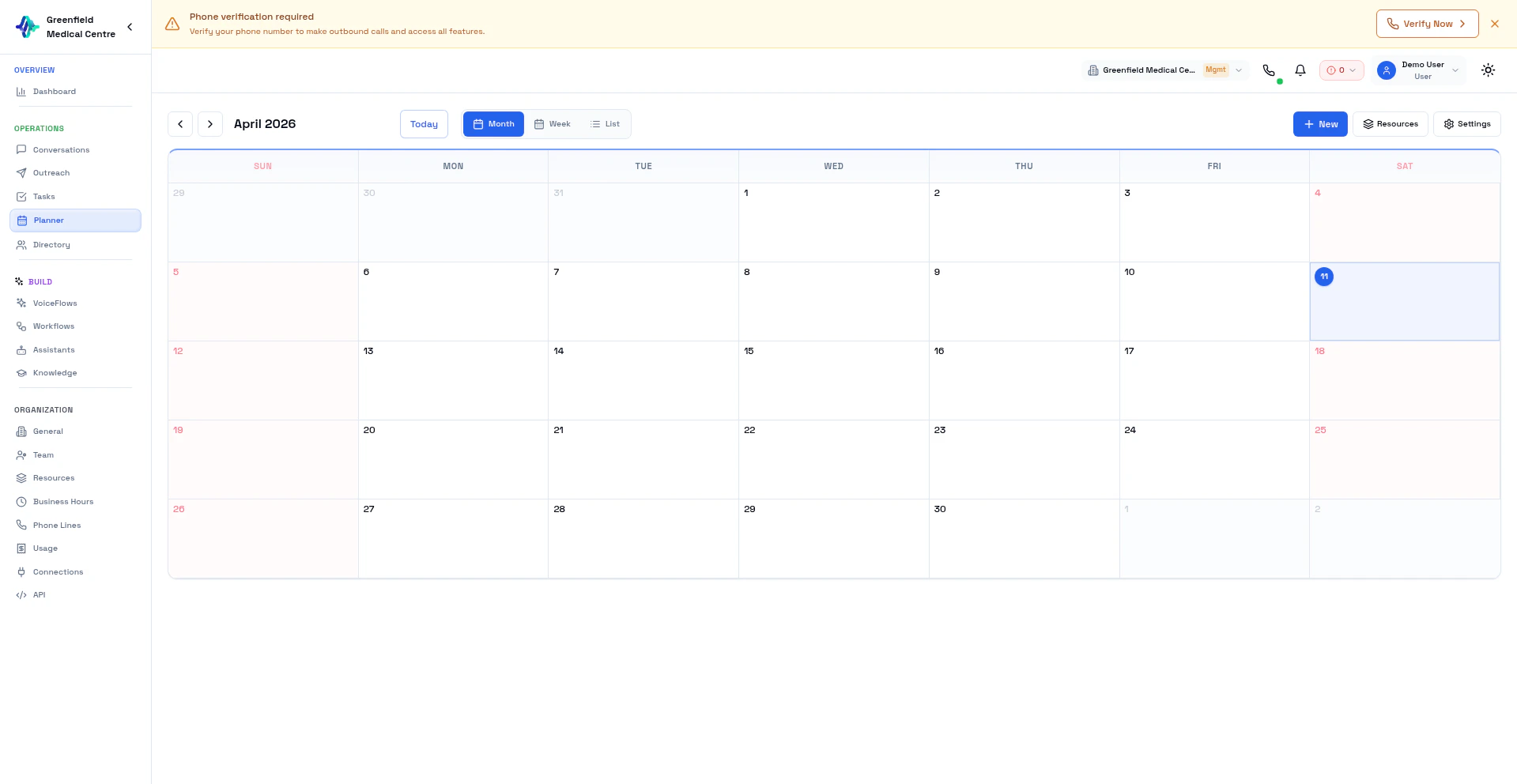
Navigate to Planner in the Workspace section to see your appointment calendar:- Month View — Overview of all appointments across the month
- Week View — Detailed weekly schedule with time slots
- List View — Chronological list of upcoming appointments
Resources
Resources are the people, rooms, or equipment that can be booked through the Planner. When a caller asks to book an appointment, the AI checks which resources are available and assigns one automatically. Navigate to Resources in the Organization section of the sidebar.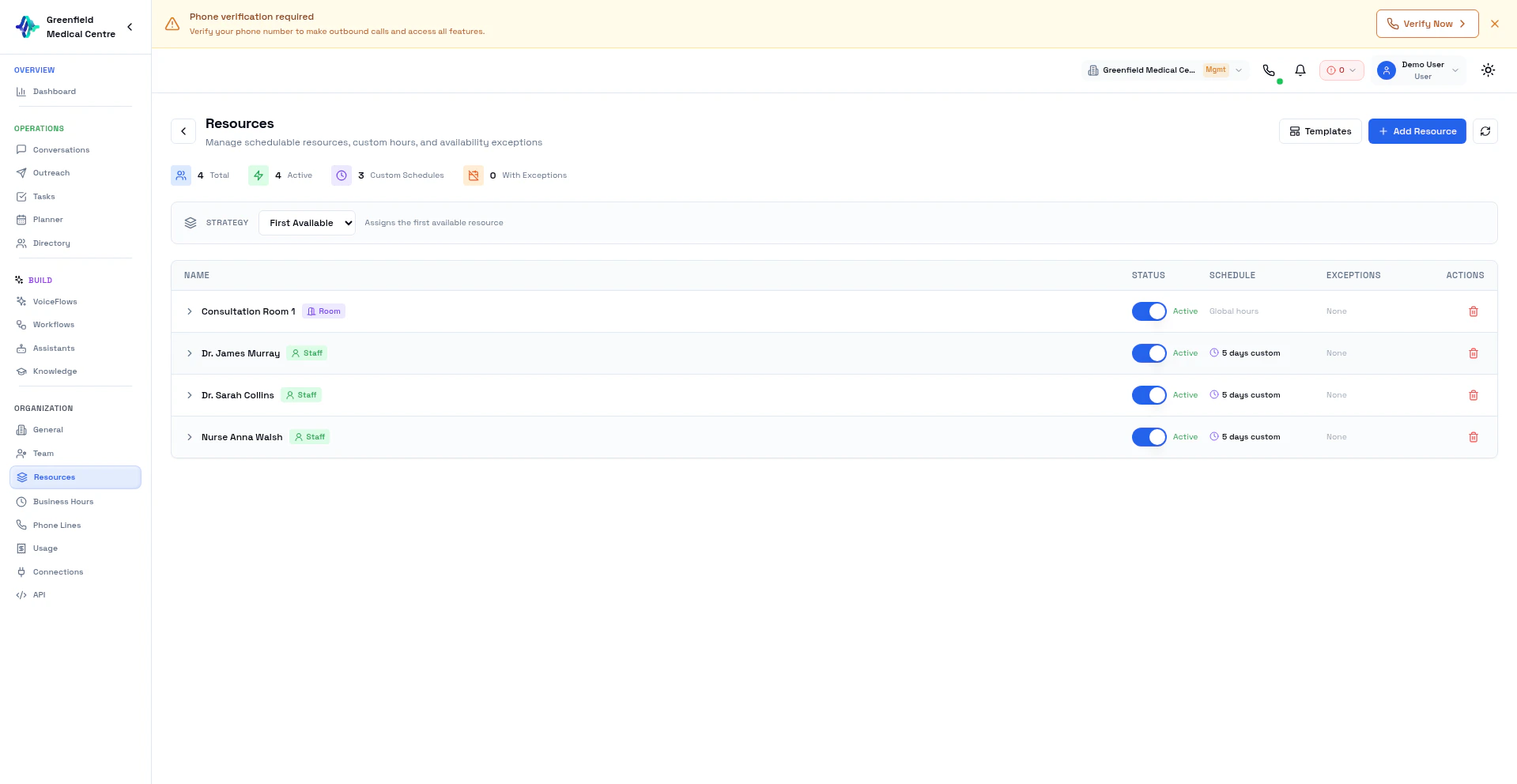
- Total resources and how many are active
- Custom Schedules — resources with their own working hours (overriding global Business Hours)
- Exceptions — resources with date-specific overrides (e.g., vacation days)
- Scheduling Strategy dropdown — how the system assigns resources
Resource Types
Creating a Resource
1
Go to Resources
Navigate to Resources in the Organization section.
2
Click Add Resource
Click Add Resource and enter:
- Name — A clear identifier (e.g., “Dr. Smith”, “Consultation Room 1”)
- Type — Staff, Room, Equipment, or Agent
- Attributes — Key-value pairs for intelligent matching (e.g.,
specialty: dermatology,capacity: 4)
3
Custom Schedule (Optional)
Override the global Business Hours for this resource. For example, Dr. Smith works Monday–Friday but Nurse Walsh works Tuesday–Saturday.
4
Exceptions (Optional)
Add date-specific overrides — vacation days, training days, or extended hours for a specific date.
5
Save
Save the resource. It’s immediately available for AI booking.
Scheduling Strategies
The strategy determines how the system picks a resource when multiple have open slots. Select from the dropdown at the top of the Resources page.Industry Templates
Click Templates to quickly set up resources for common industries:
Templates create a starting set of resources — you can edit, add, or remove them after applying.
Business Hours
Business Hours define when your AI can book appointments. Navigate to Business Hours in the Organization section of the sidebar to configure your schedule.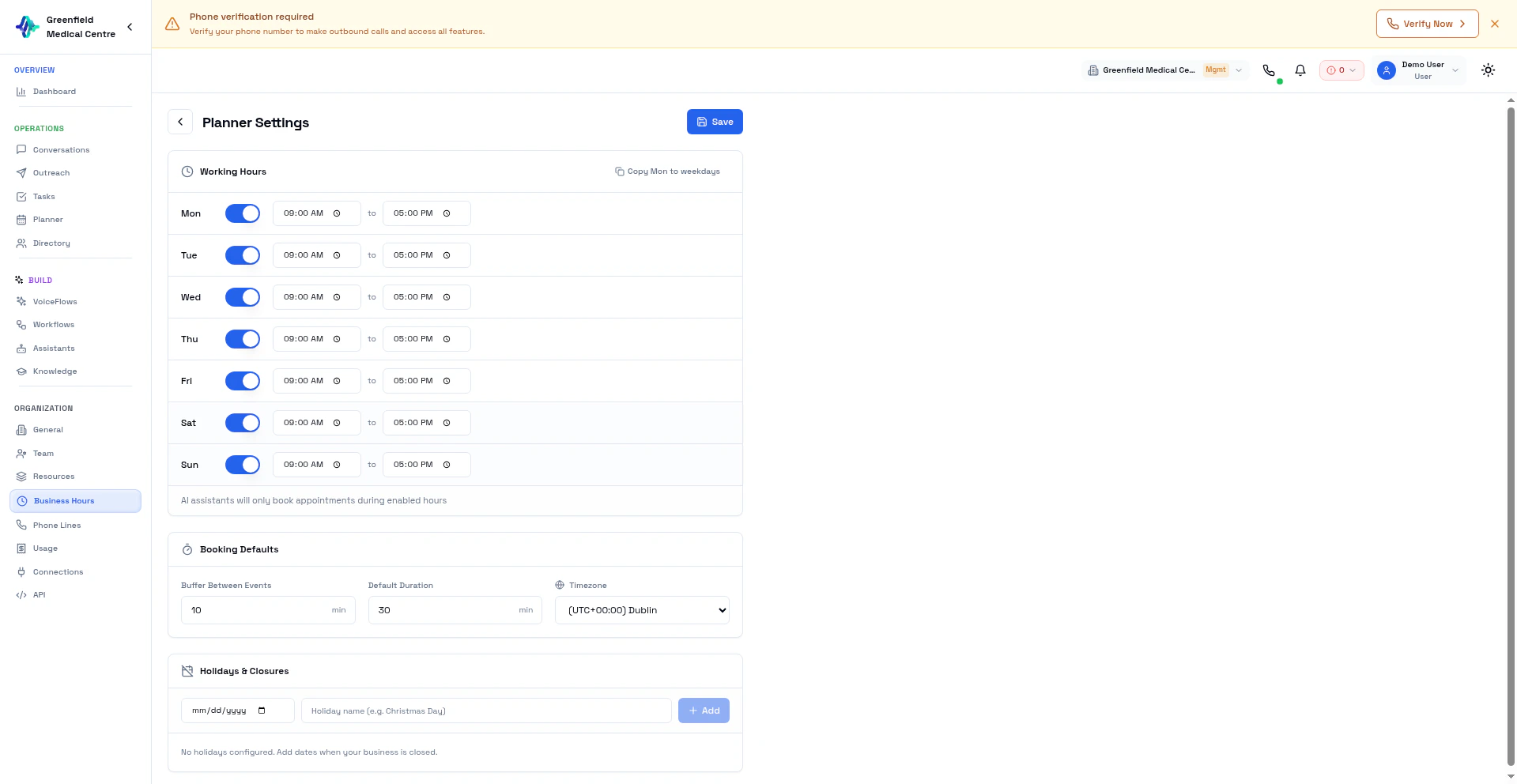
Working Hours
Set which days your business is open and the operating times for each day:- Each day (Mon–Sun) has an on/off toggle and a time range (e.g., 09:00 AM – 5:00 PM)
- Use Copy Mon to weekdays to quickly apply Monday’s hours to Tuesday through Friday
- Disabled days are unavailable for booking — the AI won’t offer those slots
AI assistants will only book appointments during enabled hours. If a caller asks for a Saturday appointment and Saturday is toggled off, the AI will offer the next available day.
Booking Defaults
Timezone
Select your business timezone from the dropdown. All appointment times displayed to callers and in the Planner calendar use this timezone. Supports 25+ timezones worldwide.Holidays & Closures
Add dates when your business is closed and the AI should not book appointments:- Select a date from the date picker
- Enter a name (e.g., “Christmas Day”, “Staff Training Day”)
- Add as many holidays as needed — they override working hours for that specific date
AI Booking During Calls
When the Appointment tool is enabled on an assistant, it can:
The assistant automatically uses
request_attributes to match the right resource. For example, a customer asking for a dermatology appointment gets matched to a resource with specialty: dermatology.
Example Conversation
Overlap Protection
The system prevents double-booking with database-level constraints. Each resource can only have one confirmed appointment per time slot.Best Practices
Next Steps
Configure Assistants
Enable the Appointment tool on your assistant
VoiceFlows
Link the Planner to your VoiceFlows