VoiceFlows vs Workflows
Before diving in, it is important to understand the difference between VoiceFlows and Workflows — they are two distinct features.VoiceFlows define how calls happen. Workflows automate what happens before, during, or after calls.
Workflow Collections
Workflows are organized into collections. Each collection is org-scoped and can be linked to a VoiceFlow. When linked, all published workflows in the collection trigger on events from that VoiceFlow. This structure lets you:- Group related automations together
- Reuse a collection across multiple VoiceFlows
- Enable or disable an entire automation suite by publishing or unpublishing the collection
Creating a Workflow
1
Navigate to Workflows
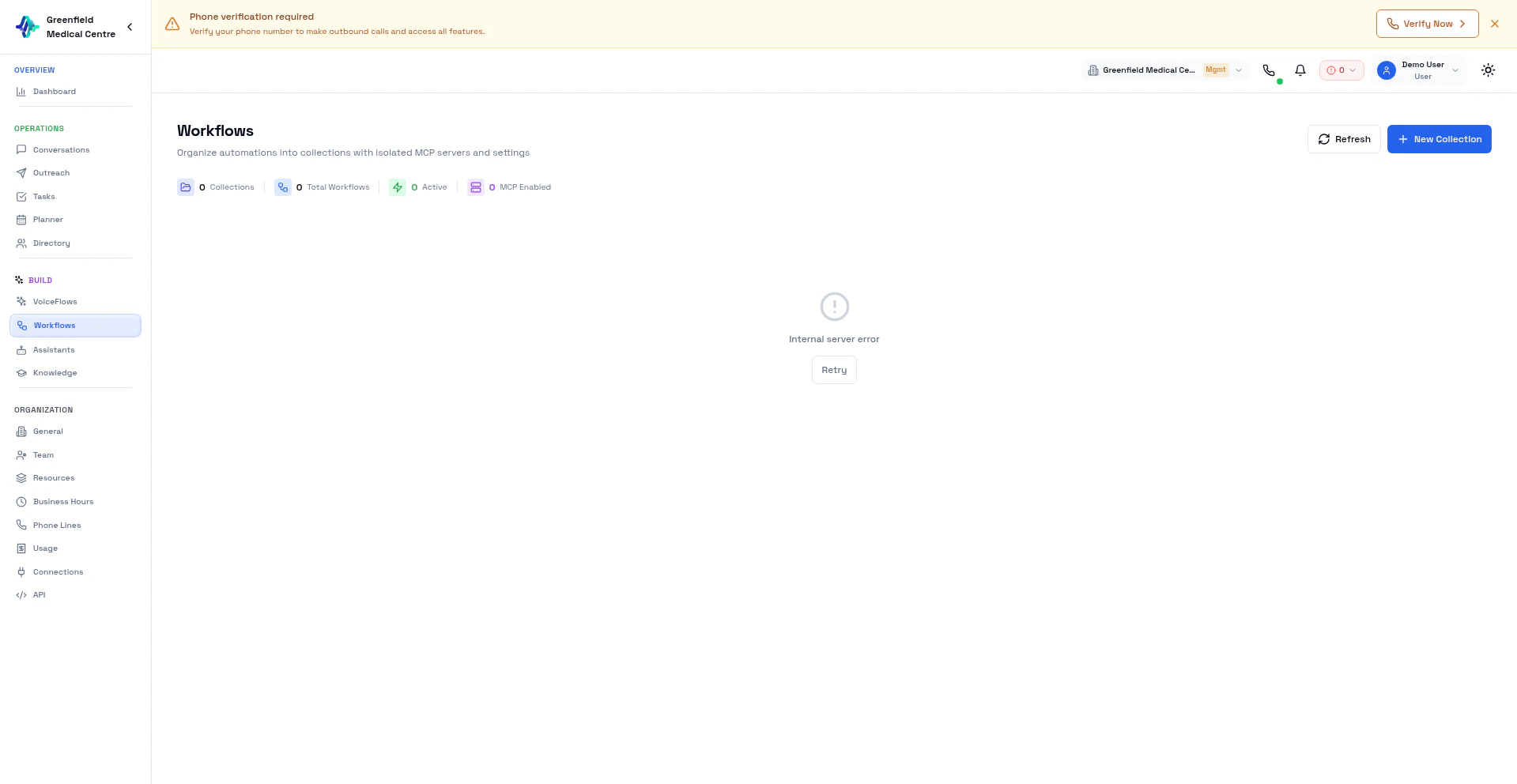
Go to Build → Workflows in the sidebar. You will see your existing collections listed here.
2
Select or Create a Collection
Select an existing collection, or click New Collection to create one. Give it a descriptive name that reflects the VoiceFlow or process it supports.
3
Add a New Workflow
Inside the collection, click New Workflow. This opens the Activepieces visual builder in a new panel.
4
Choose a Trigger
Select what starts the workflow — a call event, a schedule, a webhook, or an agent event. See the Trigger Types table below for details.
5
Add Actions
Add one or more actions — update a CRM record, send a Slack message, append a row to a spreadsheet, and so on. Connect each step visually in the builder.
6
Test the Workflow
Use the Test button in the builder to send a sample payload through the workflow and verify each action behaves as expected.
7
Publish to Activate
Click Publish to make the workflow live. Only published workflows respond to real events.
Trigger Types
Linking Workflows to VoiceFlows
To connect a workflow collection to a VoiceFlow so it fires on call events:1
Open VoiceFlow Settings
Go to Build → VoiceFlows and open the VoiceFlow you want to automate.
2
Go to the Post-Call Tab
Inside the VoiceFlow settings, navigate to the Post-Call tab.
3
Select a Workflow Collection
Use the dropdown to select the workflow collection you want to link. Only collections within your organization are shown.
4
Save
Save the VoiceFlow. All published workflows in the selected collection will now trigger automatically on events from this VoiceFlow.
Connection Management
Each collection maintains its own set of connections to external services. To configure connections:- Open the collection from Build → Workflows
- Click Connections in the collection panel
- Add or manage connections to external services
Connections are scoped to the collection, not the individual workflow. All workflows within a collection share the same connections.
Common Automation Examples
Post-call CRM update
Post-call CRM update
Trigger: Call CompletedActions:
- Look up the contact in HubSpot by phone number
- Update the contact record with the call outcome and AI-generated summary
- Create a follow-up task if the outcome is “Interested”
Slack notification
Slack notification
Trigger: Call CompletedActions:
- Format a message with the caller name, call duration, and outcome
- Send the message to your
#salesor#supportSlack channel
Follow-up email
Follow-up email
Trigger: Call CompletedActions:
- Check if the call outcome equals “Interested”
- If yes: send a personalized follow-up email via Gmail using the caller’s name and summary
- If no: skip (no action)
Daily report
Daily report
Trigger: Schedule (daily at 9:00 AM)Actions:
- Query call stats for the previous day (total calls, outcomes, average duration)
- Format a summary message
- Post to Slack or send via email to the team
Call logging to Google Sheets
Call logging to Google Sheets
Trigger: Call CompletedActions:
- Extract caller name, phone number, duration, outcome, and summary from the trigger payload
- Append a new row to a designated Google Sheet
Best Practices
Next Steps
VoiceFlows
Configure AI calling with VoiceFlows
Webhooks
Send real-time call events to external systems
Automation Guide
Explore advanced automation patterns